ABSTRACT VARIATIONS
PSP8/9/X
VERSION 2
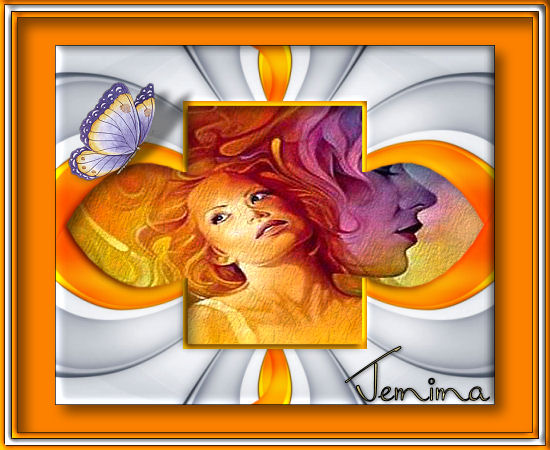
This tutorial was
written by Jemima ~ April 2007
Copyright © 2007 ~ Jemima
~ All rights reserved
There are 2 frames in this tutorial.
********************************
REMEMBER TO SAVE YOUR WORK OFTEN
********************************
FRAME VERSION 2
Open up the JF_AbstractShape1.psp image in your PSP workspace.
Right click on the Title Bar and select COPY from the options
Open a new image 550 x 450
Transparent background
PSPX: Colour Depth = 8bits/channel
Right click on the Title Bar and select PASTE AS NEW LAYER from the options.
Reposition with your MOVER tool
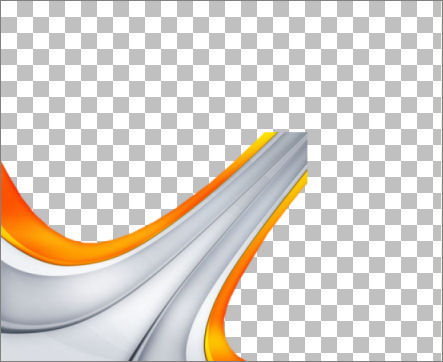
LAYERS >>> DUPLICATE
IMAGE >>> FLIP
LAYERS >>> DUPLICATE
IMAGE >>> MIRROR
LAYERS >>> DUPLICATE
IMAGE >>> FLIP
LAYERS >>> DUPLICATE
IMAGE >>> MIRROR
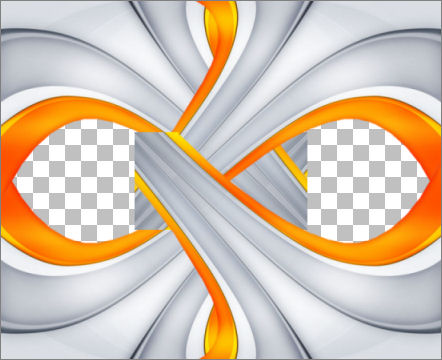
LAYERS >>> MERGE >>> MERGE VISIBLE
Choose your SELECTION TOOL
Selection Type = ELLIPSE
Mode = Replace
Feather = 2
Antialias = Checked
Starting at position 275 pixels across, 225 pixels down, draw an ellipse
finishing at
450 pixels across, 310 pixels down
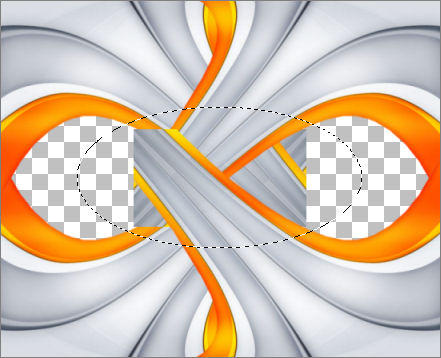
EDIT >>> CLEAR
DESELECT
Choose your SELECTION TOOL then click on the CUSTOM SELECTION
symbol
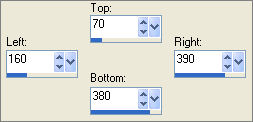
EDIT >>> CLEAR
LAYERS >>> NEW RASTER LAYER
Flood fill with ORANGE " #f7a008 "
SELECTIONS >>> MODIFY >>> CONTRACT = 6
EDIT >>> CLEAR
DESELECT
EFFECTS >>> 3D EFFECTS >>> INNER BEVEL
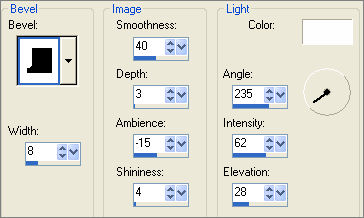
LAYERS >>> MERGE >>> MERGE VISIBLE
IMAGE >>> RESIZE = 80%
Ensure "Resize all layers" is UNCHECKED
EFFECTS >>> 3D EFFECTS >>> INNER BEVEL
Same settings
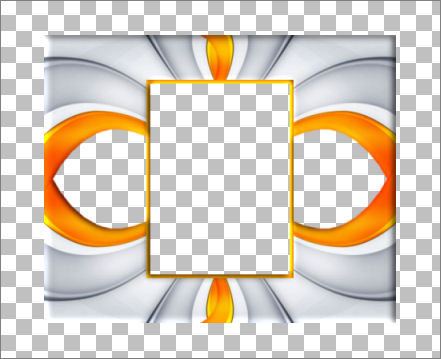
With your MAGIC WAND
Same settings.
Select the OUTER transparent area
LAYERS >>> NEW RASTER LAYER
Flood fill with ORANGE ' #fd8100 '
EFFECTS >>> 3D EFFECTS >>> DROP SHADOW
Vertical & Horizontal offsets = 1
Colour = Black
Opacity = 65
Blur = 0
Repeat Drop Shadow effect changing
Vertical & Horizontal Offsets to - ( minus ) 1
Click OK
DESELECT
SELECTIONS >>> SELECT ALL
SELECTIONS >>> MODIFY >>> CONTRACT = 5
SELECTIONS >>> INVERT
EFFECTS >>> 3D EFFECTS >>> INNER BEVEL
Same settings
EDIT >>> Repeat Inner Bevel
EFFECTS >>> 3D EFFECTS >>> DROP SHADOW
Use the same settings
Click OK
Repeat Drop Shadow effect changing
Vertical & Horizontal Offsets to 1
Click OK
SELECTIONS >>> INVERT
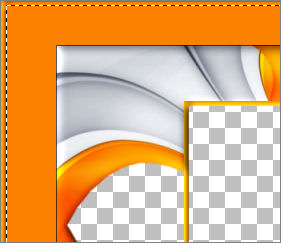
LAYERS >>> NEW RASTER LAYER
Flood fill with GREY " #dadde3 "
SELECTIONS >>> MODIFY >>> CONTRACT = 6
DESELECT
EFFECTS >>> 3D EFFECTS >>> INNER BEVEL
Same settings
EDIT >>> Repeat Inner Bevel
EFFECTS >>> 3D EFFECTS >>> DROP SHADOW
Use the same settings
Click OK
Repeat Drop Shadow effect changing
Vertical & Horizontal Offsets to 1
Click OK
With your MAGIC WAND
Same settings.
Select the CENTRE transparent area
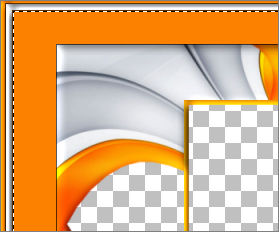
LAYERS >>> NEW RASTER LAYER
Flood fill with ORANGE ' #fd8100 '
SELECTIONS >>> MODIFY >>> CONTRACT = 5
DESELECT
EFFECTS >>> 3D EFFECTS >>> INNER BEVEL
Same settings
EDIT >>> Repeat Inner Bevel
EFFECTS >>> 3D EFFECTS >>> DROP SHADOW
Use the same settings
Click OK
Repeat Drop Shadow effect changing
Vertical & Horizontal Offsets to 1
Click OK
With your MAGIC WAND
Same settings.
Select the CENTRE transparent area
SELECTIONS >>> INVERT
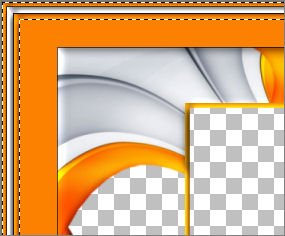
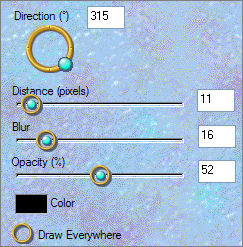
EFFECTS >>> PLUGINS >>> EYE CANDY 3 >>> DROP SHADOW
DESELECT
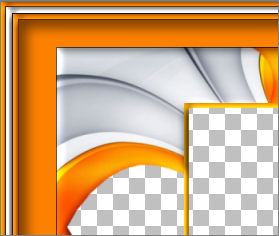
ACTIVATE THE MERGED LAYER
With your MAGIC WAND
Same settings.
Select the ORANGE transparent

SELECTIONS >>> INVERT
ACTIVATE RASTER 3
EFFECTS >>> PLUGINS >>> EYE CANDY 3 >>> DROP SHADOW
Same settings.
DESELECT
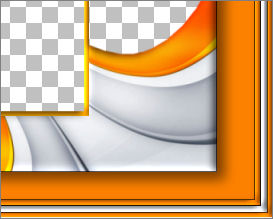
ACTIVATE THE MERGED LAYER
Choose your SELECTION TOOL then click on the CUSTOM SELECTION
symbol
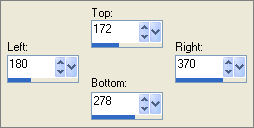
EDIT >>> CLEAR
DESELECT
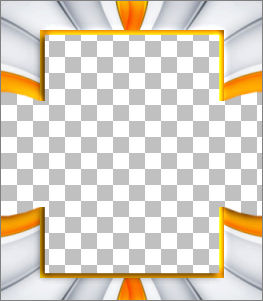
LAYERS >>> MERGE >>> MERGE VISIBLE
With your MAGIC WAND
Same settings.
Select the CENTRE transparent area
SELECTIONS >>> MODIFY >>> EXPAND = 3
SELECTIONS >>> INVERT
LAYERS >>> NEW RASTER LAYER
LAYERS >>> ARRANGE >>> SEND TO BOTTOM
EFFECTS >>> PLUGINS >>> EYE CANDY 3 >>> DROP SHADOW
Same settings.
DESELECT
LAYERS >>> MERGE >>> MERGE VISIBLE
Save as .psp image
Your frame is now ready for an image of your choice.
These are the images I used,
templ1.jpg
Click link... then....
Right click and Save Image As to a folder on your computer
PaperButterfly_TubedByGini_07-23-05.tub
Click link... then....
Right click and Save Image As to a folder on your computer
~*~*~*~*~*~*~*~*~*~*~
FRAME VERSION 1
TESTERS RESULTS
Page designed by

for

http://www.artistrypsp.com/
Copyright ©
2000-2007 Artistry In PSP / PSP Artistry
All rights reserved.
Unless specifically made available for
download,
no graphics or text may be removed from
this site for any reason
without written permission from Artistry
In PSP / PSP Artistry
TUTORIAL
INDEX
|