SHAPES
Page 5
This
tutorial was written by Jemima ~
September 2003..
Copyright © 2003/4
~ Jemima ~ All rights reserved
********************************
Open a new image 400 x 400
Transparent background
Flood Fill with DARK BLUE
(So you'll be able to see what you're
doing)
Go to LAYERS >>>New Raster Layer
Set your Foreground to WHITE
and your Background to NULL

Go to your PRESET tool
In the OPTIONS box
select "Flake 6"
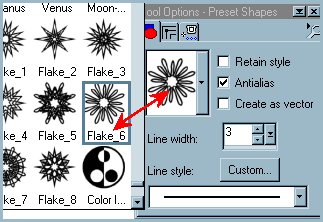
Place your cursor at position 50
(across), 50 (down)
and drag it to 350 (across), 350 (down)

With your MAGIC WAND
Same settings as before and depressing
your SHIFT key
Select the inner sections of the 'petals'
Go to SELECTIONS >>> Modify
>>> Expand = 1
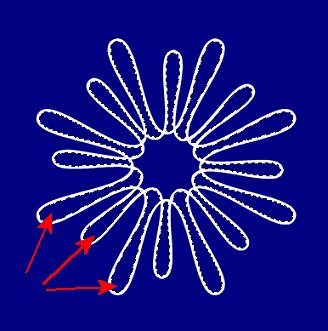
Set your Foreground to NULL
and your Background to Pale Blue (
#A8D0F2)
Flood fill the petals with the Pale Blue
Colour
Go to EFFECTS >>> 3D Effects
>>> Inner Bevel
Use these settings
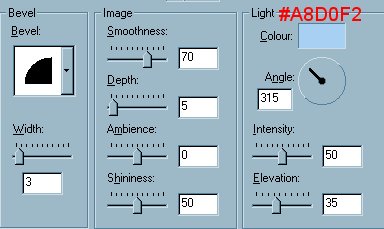
Click OK
DO NOT DESELECT
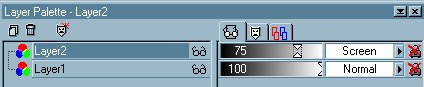
Go to your LAYER PALETTE
Reduce the Opacity to 75%
Change the Layer Blend to
"Screen"
Go to LAYERS >>>New Raster Layer
Go to EFFECTS >>> 3D Effects
>>> Cutout
Use these settings
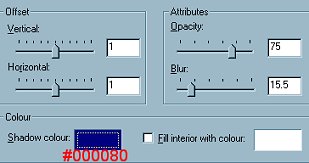
Click OK
Go to your LAYER PALETTE
and CLOSE Layer 1
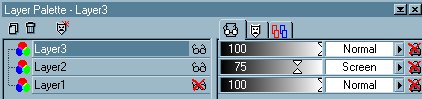
Go to LAYERS >>> Merge
>>> Merge Visible
With your MAGIC WAND
Same settings
Select the white border surrounding the
'petals'
Go to EFFECTS >>> 3D Effects
>>> Inner Bevel
Use the "ANGLED" preset
Click OK
DESELECT
NEXT
Page designed by

Copyright ©
2000-2004 Jemima
All rights reserved.
Unless specifically made available for
download,
no graphics or text may be removed from
this site for any reason
without written permission from Jemima

 NEW TUTORIAL INDEX NEW TUTORIAL INDEX
|