MUSICAL TRIO
PSP7
Page 2
This
tutorial was written by Jemima ~ April
2004
Copyright © 2004 ~
Jemima ~ All rights reserved
********************************
Load the Gold Foil pattern into your
UPPER (Foreground)
COLOUR PALETTE
Angle = 0
Scale = 100
Load the 'floraltile' pattern into your
LOWER(Background)
COLOUR PALETTE
Angle = 0
Scale = 100
Make sure the DARK PINK is in the
uppermost RIGHT box
and
the LILAC is in the uppermost LEFT box
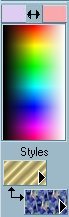
BORDER 1
Go to IMAGE >>> Add Borders = 3
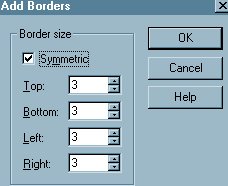
Click OK
With your MAGIC WAND
Match Mode = RGB Value
Tolerance = 0
Feather = 0
Sample Merged = UNchecked
Select the DARK PINK border around your
image
Flood fill the selected area with the
'Gold Foil' pattern
Go to EFFECTS >>>3D Effects
>>> Drop Shadow
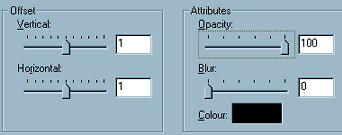 . .
Click OK
Repeat Drop Shadow changing
Vertical & Horizontal offsets to = -
(minus) 1
Click OK
DESELECT
BORDER 2
Go to IMAGE >>> Add Borders = 20
With your MAGIC WAND
Select the DARK PINK border around your
image
Flood fill the selection with the
'floraltile' pattern
Go to EFFECTS >>>3D Effects
>>> Drop Shadow
Use same settings
Repeat Drop Shadow changing
Vertical & Horizontal offsets to = 1
Click OK
Go to EFFECTS >>> 3D Effects
>>> Inner Bevel
Use the same settings
Go to EFFECTS >>> Edge
>>> Enhance
DESELECT
BORDER 3
Go to IMAGE >>> Add Borders = 3
Click OK
With your MAGIC WAND
Select the DARK PINK border around your
image
Flood fill the selected area with the
'Gold Foil' pattern
Go to EFFECTS >>>3D Effects
>>> Drop Shadow
Use the same settings
Click OK
Repeat Drop Shadow changing
Vertical & Horizontal offsets to = -
(minus) 1
Click OK
DESELECT
BORDER 4
Go to IMAGE >>> Add Borders = 15
With your MAGIC WAND
Select the DARK PINK border around your
image
Go to EFFECTS >>> Texture
Effects >>> Fine Leather
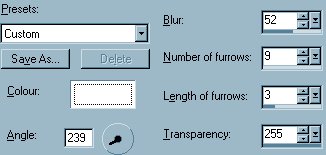
Click OK
Go to EFFECTS >>> 3D Effects
>>> Inner Bevel
Use the same settings
DESELECT
BORDER 5
Click on the arrows between the uppermost
boxes on your
COLOUR PALETTE
so that the LILAC is now in the RH box

Go to IMAGE >>> Add Borders = 15
With your MAGIC WAND
Select the LILAC border around your image
Go to EFFECTS >>> Texture
Effects >>> Fine Leather
Use the same settings
Click OK
Go to EFFECTS >>> 3D Effects
>>> Inner Bevel
Use the same settings
Repeat Inner Bevel
Click OK
Go to EFFECTS >>>3D Effects
>>> Drop Shadow
Use the same settings
Click OK
Repeat Drop Shadow changing
Vertical & Horizontal offsets to = 1
Click OK
DESELECT

BORDER 6
Go to IMAGE >>> Add Borders = 15
With your MAGIC WAND
Select the LILAC border around your image
Flood fill the selected area with the
'floraltile' pattern
Go to EFFECTS >>> 3D Effects
>>> Inner Bevel
Use the same settings
Repeat Inner Bevel
Click OK
Go to EFFECTS >>>3D Effects
>>> Drop Shadow
Use the same settings
Click OK
Repeat Drop Shadow changing
Vertical & Horizontal offsets to = -
(minus) 1
Click OK
Go to EFFECTS >>> Edge
>>> Enhance
DESELECT
BORDER 7
Go to IMAGE >>> Add Borders = 3
Click OK
With your MAGIC WAND
Select the LILAC border around your image
Flood fill the selected area with the
'Gold Foil' pattern
Go to EFFECTS >>>3D Effects
>>> Drop Shadow
Use the same settings
Click OK
Repeat Drop Shadow changing
Vertical & Horizontal offsets to = 1
Click OK
Go to EFFECTS >>> Sharpen
>>> Sharpen
DESELECT
Go to IMAGE >>>> Resize to
suit
Go to ADJUST >>> Sharpness
>>> Sharpen
and you're finished!!!!
I hope you enjoyed doing this tutorial as
much as I enjoyed creating it *S*
Page designed by

for

http://www.coldfusion-vpm.com/~jemima/Artistry_Pages/index.html
Copyright
© 2000-2004 Artistry In PSP / PSP
Artistry
All rights reserved.
Unless specifically made available for
download,
no graphics or text may be removed from
this site for any reason
without written permission from Artistry
In PSP / PSP Artistry
TUTORIAL INDEX
|