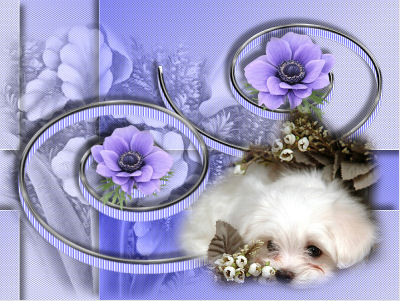
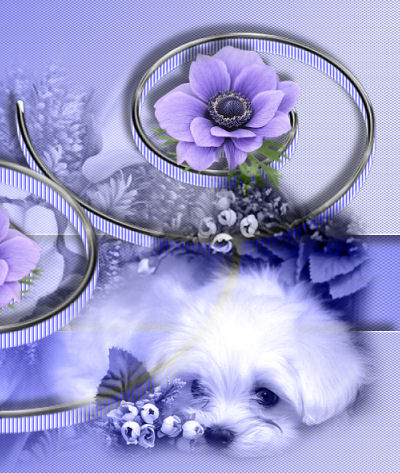
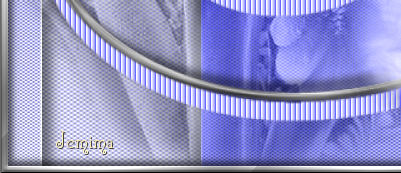
STEP 1
In your MATERIALS PALETTE
Load LILAC " #cfd0fd " in your foreground
Load PURPLE " #6e71fe " in your background
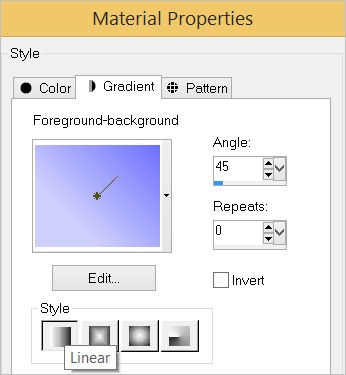
Then click on the GRADIENT option in your foreground palette
Select the "Foreground-background" option
using these settings.
.
.
|
|
STEP 2
Open a new image 800 x 600
Transparent background
PSP9: Colour Depth = 16 Million Colors (24bit)
PSPX-PSP2020: Colour Depth RGB = 8bits/channel
Flood fill with GRADIENT .
|
STEP 3
EFFECTS >>> TEXTURE EFFECTS >>> TEXTURE
COLOUR = #c0c0c0
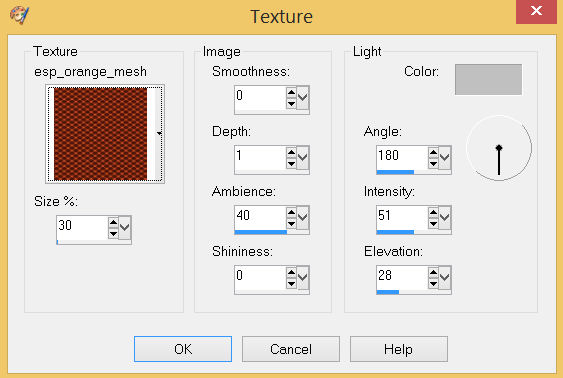
 .
.
|
STEP 4
LAYERS >>> DUPLICATE
PSP9 - PSPX3: IMAGE >>> MIRROR
PSPX4 - PSP2020: Use script available for download at top of page.
(Higher versions follow your version's method)
IMAGE >>> RESIZE = 80%
Check "Lock aspect ratio."
Ensure "Resize all layers" is UNCHECKED
Resample using WEIGHTED AVERAGE
ADJUST >>> SHARPNESS >>> SHARPEN MORE
SAVE YOUR WORK
|
|
STEP 5
EFFECTS >>> IMAGE EFFECTS >>> OFFSET
Horizontal Offset = 120
Vertical Offset = 240
Edge Mode = WRAP
,
|
|
STEP 6
EFFECTS >>> 3D EFFECTS >>> DROP SHADOW
Vertical & Horizontal offsets = 10
Colour = Black
Opacity = 50
Blur = 15.00
Repeat Drop Shadow effect changing
Vertical & Horizontal Offsets to - ( minus ) 10
SAVE YOUR WORK
|
|
STEP 7
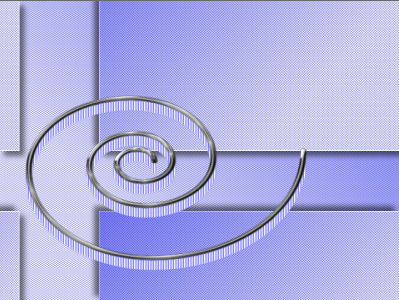
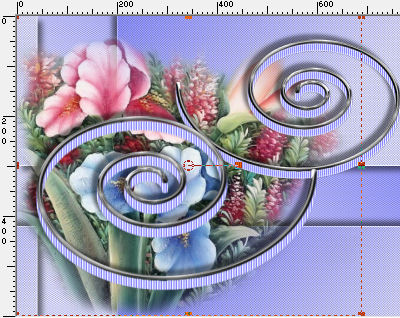
Open up the Mtm-scrap-shapes-9-9 maart 2007 image in your PSP workspace
Right click on the Title Bar and select COPY from the options
Right click on the Title Bar of your tag image
and select PASTE AS NEW LAYER from the options.
EFFECTS >>> 3D EFFECTS >>> DROP SHADOW
Vertical offset = 10
Horizontal offset = 0
Colour = WHITE
Opacity = 100
Blur = 0.00
Check "Shadow on new layer" ,
|
|
STEP 8
LAYERS >>> DUPLICATE
EFFECTS >>> IMAGE EFFECTS >>> OFFSET
Horizontal Offset = 0
Vertical Offset = - ( minus ) 5
Edge Mode = Transparent
LAYERS >>> DUPLICATE
EFFECTS >>> IMAGE EFFECTS >>> OFFSET
Horizontal Offset = 0
Vertical Offset = - ( minus ) 5
Edge Mode = Transparent
LAYERS >>> MERGE >>> MERGE DOWN
Edit >>> Repeat Layer Merge Down
SAVE YOUR WORK ,
|
|
STEP 9
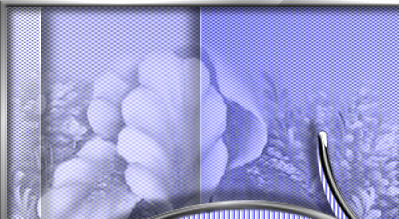
EFFECTS >>> TEXTURE EFFECTS >>> BLINDS
COLOUR = #4040ff
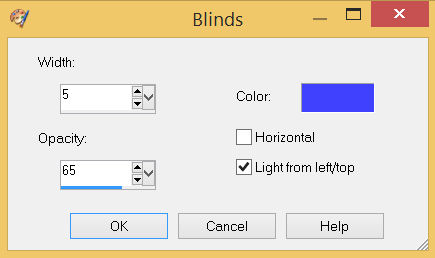

,
|
STEP 10
ADJUST >>> SHARPNESS >>> SHARPEN
ACTIVATE Raster 2
LAYERS >>> MERGE >>> MERGE DOWN
EFFECTS >>> IMAGE EFFECTS >>> OFFSET
Horizontal Offset = - ( minus ) 65
Vertical Offset = - ( minus ) 55
Edge Mode = Transparent |
|
STEP 11
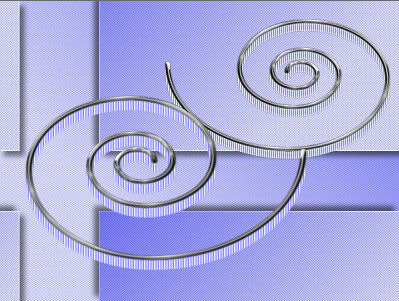
LAYERS >>> DUPLICATE
IMAGE >>> RESIZE = 80%
Check "Lock aspect ratio."
Ensure "Resize all layers" is UNCHECKED
Resample using WEIGHTED AVERAGE
ADJUST >>> SHARPNESS >>> SHARPEN MORE
PSP9 - PSPX3: IMAGE >>> MIRROR
PSPX4 - PSP2020: Use script available for download at top of page.
(Higher versions follow your version's method)
LAYERS >>> ARRANGE >>> MOVE DOWN
EFFECTS >>> IMAGE EFFECTS >>> OFFSET
Horizontal Offset = 105
Vertical Offset = 175
Edge Mode = Transparent |
|
STEP 12
ACTIVATE Raster 2 Shadow 1
LAYERS >>> MERGE >>> MERGE DOWN
EFFECTS >>> IMAGE EFFECTS >>> OFFSET
Horizontal Offset = - ( minus ) 15
Vertical Offset = - ( minus ) 10
Edge Mode = Transparent
EFFECTS >>> 3D EFFECTS >>> DROP SHADOW
Vertical & Horizontal offsets = - ( minus ) 10
Colour = Black
Opacity = 50
Blur = 10.00
UNCheck "Shadow on new layer" ,
SAVE YOUR WORK |
|
STEP 13
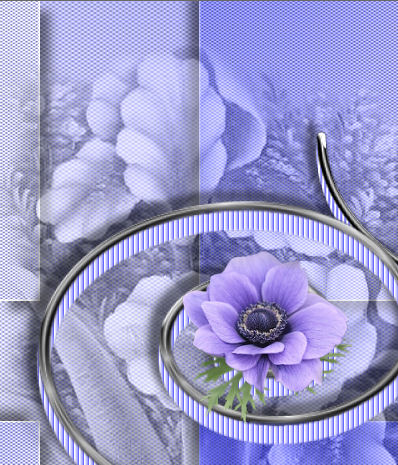
ACTIVATE Copy of Raster 1
Open up the adb@painted-flowers-1 image in your PSP workspace
Right click on the Title Bar and select COPY from the options
Right click on the Title Bar of your tag image
and select PASTE AS NEW LAYER from the options.
VIEW >>> RULERS
Select your RASTER DEFORM tool
Mode = SCALE
use default settings
PSPX - PSP2020:Select your PICK tool
Move the centre top node up level with the 0 pixel mark on your left ruler
Move the centre left node left level with the 0 pixel mark on your top ruler
Move the lower centre node down level with the 600 pixel mark on your left ruler |
|
STEP 14
Click the RESET RECTANGLE arrow
Select the MOVER tool to disengage the DEFORMATION tool (PICK tool)
In your LAYER PALETTE change the OPACITY to 60%
Change the BLEND MODE to LUMINANCE (L)
SAVE YOUR WORK |
|
STEP 15
ACTIVATE Copy of Raster 2 Shadow 1
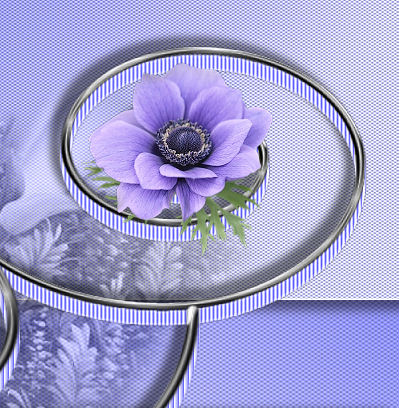
Open up the FBR_Anemone_Audhild 6-1-08 image in your PSP workspace
Right click on the Title Bar and select COPY from the options
Right click on the Title Bar of your tag image
and select PASTE AS NEW LAYER from the options.
IMAGE >>> RESIZE = 40%
Check "Lock aspect ratio."
Ensure "Resize all layers" is UNCHECKED
Resample using WEIGHTED AVERAGE
ADJUST >>> SHARPNESS >>> SHARPEN
Reposition with your MOVER tool |
|
STEP 16
LAYERS >>> DUPLICATE
IMAGE >>> RESIZE = 90%
Check "Lock aspect ratio."
Ensure "Resize all layers" is UNCHECKED
Resample using WEIGHTED AVERAGE
ADJUST >>> SHARPNESS >>> SHARPEN
PSP9 - PSPX3: IMAGE >>> MIRROR
PSPX4 - PSP2020: Use script available for download at top of page.
(Higher versions follow your version's method)
Reposition with your MOVER tool |
|
STEP 17
LAYERS >>> MERGE >>> MERGE DOWN
Repeat Drop Shadow
SAVE YOUR WORK |
|
STEP 18
Open up the Bichon_Frise image in your PSP workspace
Right click on the Title Bar and select COPY from the options
Right click on the Title Bar of your tag image
and select PASTE AS NEW LAYER from the options.
IMAGE >>> RESIZE = 75%
Check "Lock aspect ratio."
Ensure "Resize all layers" is UNCHECKED
Resample using WEIGHTED AVERAGE
ADJUST >>> SHARPNESS >>> SHARPEN
EFFECTS >>> IMAGE EFFECTS >>> OFFSET
Horizontal Offset = 160
Vertical Offset = - ( minus ) 95
Edge Mode = Transparent, |
|
STEP 19
In your LAYER PALETTE
Change the BLEND MODE to LUMINANCE (L)
LAYERS >>> MERGE >>> MERGE VISIBLE
SAVE YOUR WORK
, |
|
STEP 20
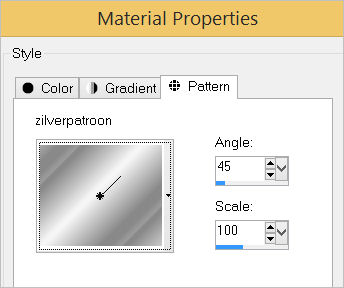
In your MATERIALS PALETTE load
zilverpatroon pattern in the foreground
using these settings |
|
STEP 21
LAYERS >>> NEW RASTER LAYER
SELECTIONS >>> SELECT ALL
Flood fill with zilverpatroon pattern
SELECTIONS >>> MODIFY >>> CONTRACT = 7
EDIT >>> CLEAR
DESELECT
EFFECTS >>> 3D EFFECTS >>> INNER BEVEL
COLOUR = #c0c0c0
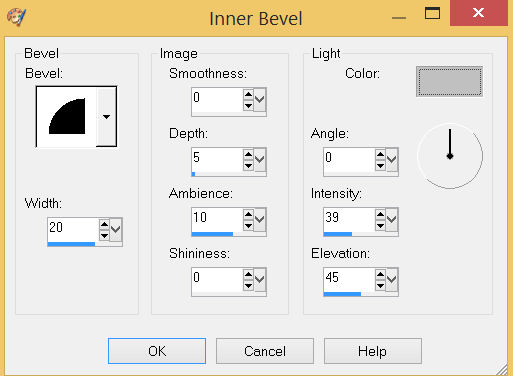

, |
STEP 22
EFFECTS >>> 3D EFFECTS >>> DROP SHADOW
Vertical & Horizontal offsets = 4
Colour = Black
Opacity = 75
Blur = 10.00
Repeat Drop Shadow effect changing
Vertical & Horizontal Offsets to - ( minus ) 4
LAYERS >>> MERGE >>> MERGE DOWN
, |
|
STEP 23
LAYERS >>> NEW RASTER LAYER
SELECT your TEXT tool
With a font of your choice add your name
, |
|
STEP 24
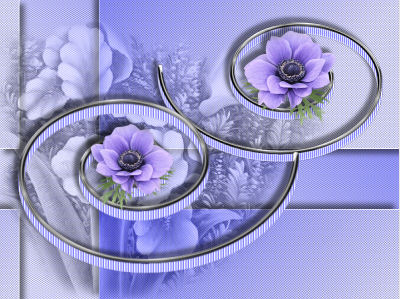
LAYERS >>> MERGE >>> MERGE ALL (Flatten)
Save as .jpg image
, |
| |
|
| |
|