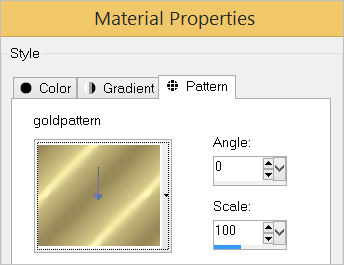
STEP 1
Open a new image 800 x 600
Transparent background
PSP9: Colour Depth = 16 Million Colors (24bit)
PSPX-PSP2019: Colour Depth RGB = 8bits/channel
Flood fill with GREEN #508622
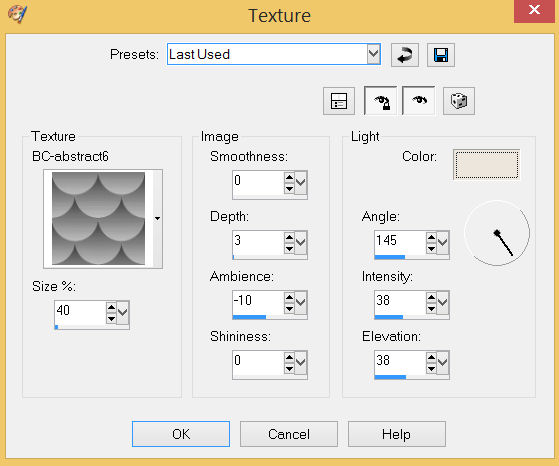
EFFECTS >>> TEXTURE EFFECTS >>> TEXTURE
COLOR = #ece6dc
.TEXTURE = BC-abstract6
.
EFFECTS >>> EDGE EFFECTS >>> ENHANCE
 SAVE YOUR WORK
|
STEP 2
LAYERS >>> NEW RASTER LAYER
SELECTIONS >>> SELECT ALL
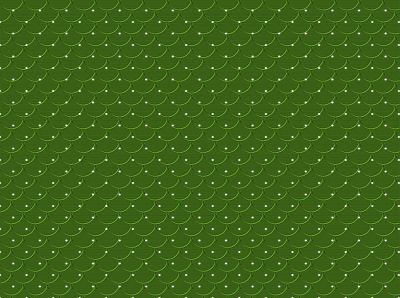
Open up the Dot Element image in your PSP workspace
Right click on the Title Bar and select COPY from the options
Right click on the Title Bar of your tag image
and select PASTE INTO SELECTION from the options.
DESELECT
ADJUST >>> BRIGHTNESS and CONTRAST >>> BRIGHTNESS/CONTRAST
Brightness = 255
Contrast = 23
PSPX6-PSP2019: Linear Mode checked
|
|
STEP 3
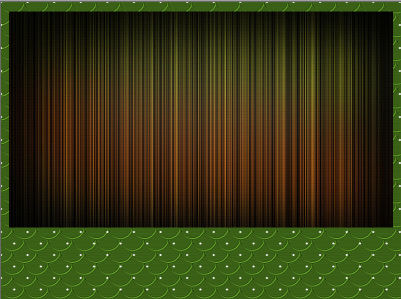
Open up the background1265 image in your PSP workspace
Right click on the Title Bar and select COPY from the options
Right click on the Title Bar of your tag image
and select PASTE AS NEW LAYER from the options.
EFFECTS >>> IMAGE EFFECTS >>> OFFSET
Horizontal Offset = 0
Vertical Offset = 65
Edge Mode = Transparent |
|
STEP 4
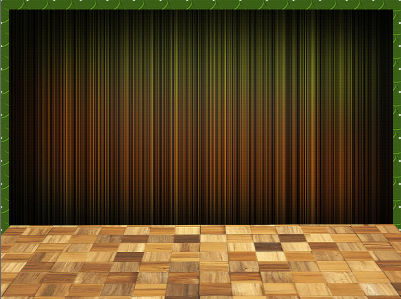
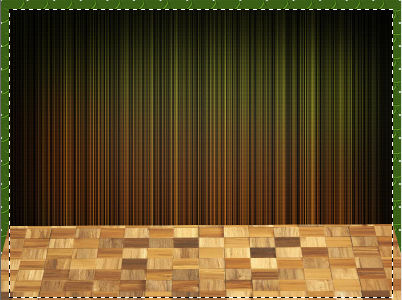
Open up the floor image in your PSP workspace
Right click on the Title Bar and select COPY from the options
Right click on the Title Bar of your tag image
and select PASTE AS NEW LAYER from the options.
EFFECTS >>> IMAGE EFFECTS >>> OFFSET
Horizontal Offset = 3
Vertical Offset = - ( minus ) 258
Edge Mode = Transparent
SAVE YOUR WORK
|
|
STEP 5
CLOSE Raster 4
ACTIVATE Raster 3
VIEW >>> RULERS
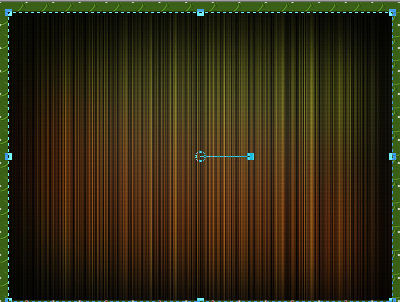
Select your RASTER DEFORM tool
Mode = SCALE
use default settings
PSPX - PSP2019:Select your PICK tool
Move the centre bottom node down level with the 600 pixel mark on your left ruler |
|
STEP 6
Click the RESET RECTANGLE arrow
Select the MOVER tool to disengage the DEFORMATION tool (PICK tool)
Choose your SELECTION TOOL
On the top menu select 'Create selection from:
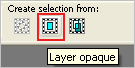
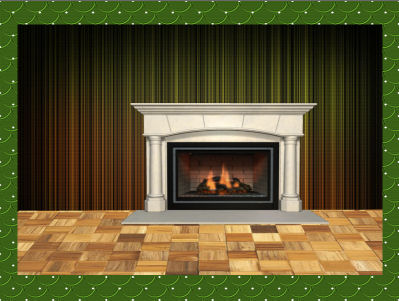
OPEN & ACTIVATE Raster 4
|
|
STEP 7
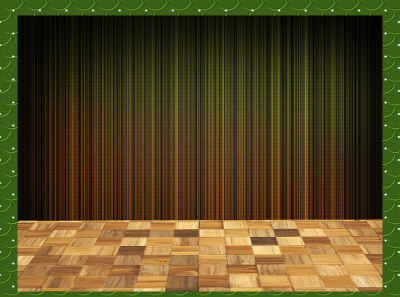
SELECTIONS >>> INVERT
EDIT >>> CLEAR
DESELECT
LAYERS >>> MERGE >>> MERGE DOWN
IMAGE >>> RESIZE = 95%
Check "Lock aspect ratio."
Ensure "Resize all layers" is UNCHECKED
Resample using WEIGHTED AVERAGE
,
|
|
STEP 8
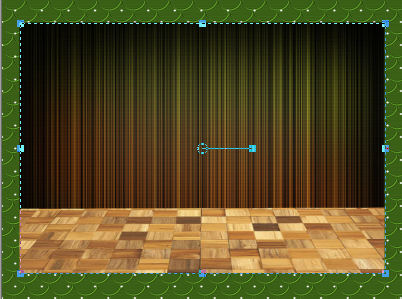
Select your RASTER DEFORM tool
Mode = SCALE
use default settings
PSPX - PSP2019:Select your PICK tool
Move the centre bottom node UP level with the 550 pixel mark on your left ruler
Move the centre top node DOWN level with the 50 pixel mark on your left ruler,
|
|
STEP 9
Click the RESET RECTANGLE arrow
Select the MOVER tool to disengage the DEFORMATION tool (PICK tool)
Open up the fireplace image in your PSP workspace
Right click on the Title Bar and select COPY from the options
Right click on the Title Bar of your tag image
and select PASTE AS NEW LAYER from the options.
IMAGE >>> RESIZE = 90%
Check "Lock aspect ratio."
Ensure "Resize all layers" is UNCHECKED
Resample using WEIGHTED AVERAGE
ADJUST >>> SHARPNESS >>> SHARPEN
EFFECTS >>> IMAGE EFFECTS >>> OFFSET
Horizontal Offset = 50
Vertical Offset = - ( minus ) 25
Edge Mode = Transparent
SAVE YOUR WORK
|
|
STEP 10
EFFECTS >>> 3D EFFECTS >>> DROP SHADOW
Vertical offset = - ( minus ) 5
Horizontal offset = 0
Colour = Black
Opacity = 65
Blur = 10.00
,
|
STEP 11
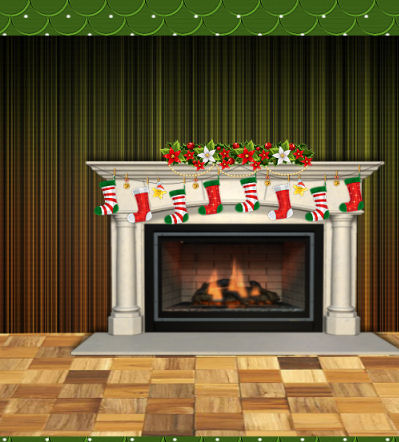
Open up the Xmas_Stockings image in your PSP workspace
Right click on the Title Bar and select COPY from the options
Right click on the Title Bar of your tag image
and select PASTE AS NEW LAYER from the options.
IMAGE >>> RESIZE = 90%
Check "Lock aspect ratio."
Ensure "Resize all layers" is UNCHECKED
Resample using WEIGHTED AVERAGE
ADJUST >>> SHARPNESS >>> SHARPEN
EFFECTS >>> IMAGE EFFECTS >>> OFFSET
Horizontal Offset = 50
Vertical Offset = 55
Edge Mode = Transparent |
|
STEP 12
Open up the Floral Banner image in your PSP workspace
Right click on the Title Bar and select COPY from the options
Right click on the Title Bar of your tag image
and select PASTE AS NEW LAYER from the options.
IMAGE >>> RESIZE = 30%
Check "Lock aspect ratio."
Ensure "Resize all layers" is UNCHECKED
Resample using WEIGHTED AVERAGE
ADJUST >>> SHARPNESS >>> SHARPEN
EFFECTS >>> IMAGE EFFECTS >>> OFFSET
Horizontal Offset = 50
Vertical Offset = 100
Edge Mode = Transparent
LAYERS >>> MERGE >>> MERGE DOWN
Edit >>> Repeat Layer Merge Down,
SAVE YOUR WORK
|
|
STEP 13
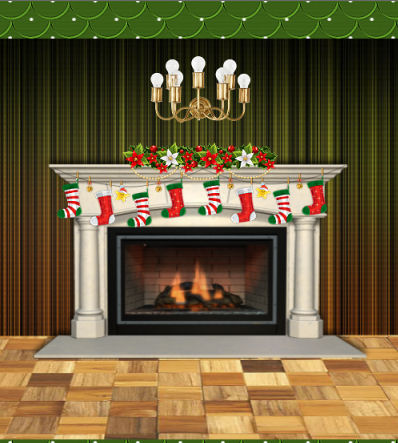
Open up the WallLights image in your PSP workspace
Right click on the Title Bar and select COPY from the options
Right click on the Title Bar of your tag image
and select PASTE AS NEW LAYER from the options.
IMAGE >>> RESIZE = 25%
Check "Lock aspect ratio."
Ensure "Resize all layers" is UNCHECKED
Resample using WEIGHTED AVERAGE
ADJUST >>> SHARPNESS >>> SHARPEN
EFFECTS >>> IMAGE EFFECTS >>> OFFSET
Horizontal Offset = 50
Vertical Offset = 190
Edge Mode = Transparent
LAYERS >>> MERGE >>> MERGE DOWN
Edit >>> Repeat Layer Merge Down,, |
|
STEP 14
Open up the Tree_Gifts image in your PSP workspace
Right click on the Title Bar and select COPY from the options
Right click on the Title Bar of your tag image
and select PASTE AS NEW LAYER from the options.
IMAGE >>> RESIZE = 60%
Check "Lock aspect ratio."
Ensure "Resize all layers" is UNCHECKED
Resample using WEIGHTED AVERAGE
ADJUST >>> SHARPNESS >>> SHARPEN
EFFECTS >>> IMAGE EFFECTS >>> OFFSET
Horizontal Offset = - ( minus ) 210
Vertical Offset = 0
Edge Mode = Transparent
SAVE YOUR WORK
|
|
STEP 15
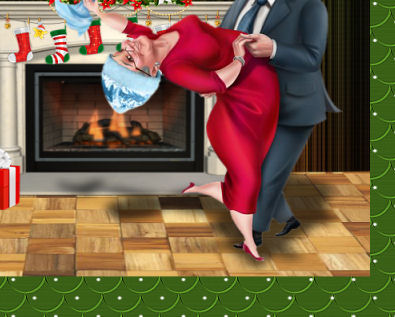
Open up the Couple_11d image in your PSP workspace
Right click on the Title Bar and select COPY from the options
Right click on the Title Bar of your tag image
and select PASTE AS NEW LAYER from the options.
IMAGE >>> RESIZE = 85%
Check "Lock aspect ratio."
Ensure "Resize all layers" is UNCHECKED
Resample using WEIGHTED AVERAGE
ADJUST >>> SHARPNESS >>> SHARPEN
EFFECTS >>> IMAGE EFFECTS >>> OFFSET
Horizontal Offset = 150
Vertical Offset = - ( minus ) 15
Edge Mode = Transparent
, |
|
STEP 16
EFFECTS >>> 3D EFFECTS >>> DROP SHADOW
Vertical & Horizontal offsets = 5
Colour = Black
Opacity = 65
Blur = 10.00
SHADOW ON A NEW LAYER
Select your RASTER DEFORM tool
Mode = SCALE
use default settings
PSPX - PSP2019:Select your PICK tool
Move the centre TOP node DOWN level with the 400 pixel mark on your left ruler
, |
|
STEP 17
Click the RESET RECTANGLE arrow
Select the MOVER tool to disengage the DEFORMATION tool (PICK tool)
ADJUST >>> BLUR >>> GAUSSIAN BLUR
Radius = 5.00
ACTIVATE Raster 5
LAYERS >>> MERGE >>> MERGE DOWN
Edit >>> Repeat Layer Merge Down
Edit >>> Repeat Layer Merge Down
SAVE YOUR WORK
, |
|
STEP 18
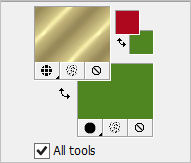
In your MATERIALS PALETTE
Load RED " #ae081e " in your foreground
Load GREEN " #508622 " in your background
Load the goldpattern PATTERN in the foreground using these settings --->>>
, |
|
STEP 19
Choose your SELECTION TOOL
On the top menu select 'Create selection from:
LAYERS >>> NEW RASTER LAYER
Flood fill with GREEN
SELECTIONS >>> MODIFY >>> CONTRACT = 5
EDIT >>> CLEAR
Flood fill with goldpattern
SELECTIONS >>> MODIFY >>> CONTRACT = 3
EDIT >>> CLEAR
Flood fill with RED
SELECTIONS >>> MODIFY >>> CONTRACT = 5
EDIT >>> CLEAR
DESELECT
ADJUST >>> SHARPNESS >>> SHARPEN MORE, |
|
STEP 20
EFFECTS >>> 3D EFFECTS >>> DROP SHADOW
Vertical & Horizontal offsets = 5
Colour = Black
Opacity = 65
Blur = 10.00
Uncheck 'Shadow on new layer'
Repeat Drop Shadow effect changing
Vertical & Horizontal Offsets to - ( minus ) 5
SAVE YOUR WORK
|
STEP 21
LAYERS >>> NEW RASTER LAYER
SELECTIONS >>> SELECT ALL
Flood fill with GREEN
SELECTIONS >>> MODIFY >>> CONTRACT = 5
EDIT >>> CLEAR
Flood fill with goldpattern
SELECTIONS >>> MODIFY >>> CONTRACT = 3
EDIT >>> CLEAR
Flood fill with RED
SELECTIONS >>> MODIFY >>> CONTRACT = 5
EDIT >>> CLEAR
DESELECT
ADJUST >>> SHARPNESS >>> SHARPEN MORE
EDIT >>> Repeat Drop Shadows
, |
|
STEP 22
Open up the element650 image in your PSP workspace
Right click on the Title Bar and select COPY from the options
Right click on the Title Bar of your tag image
and select PASTE AS NEW LAYER from the options
. ADJUST >>> BRIGHTNESS and CONTRAST >>> BRIGHTNESS/CONTRAST
Brightness = 255
Contrast = 23
PSPX6-PSP2019: Linear Mode checked
IMAGE >>> RESIZE = 50%
Check "Lock aspect ratio."
Ensure "Resize all layers" is UNCHECKED
Resample using WEIGHTED AVERAGE
PSP9 - PSPX3: IMAGE >>> FLIP
PSPX4 - PSPX8: Use script available for download at top of page.
(Higher versions follow your version's method)
EFFECTS >>> IMAGE EFFECTS >>> OFFSET
Horizontal Offset = - ( minus ) 240
Vertical Offset = 150
Edge Mode = Transparent
, |
|
STEP 23
EFFECTS >>> PLUGINS >>> SIMPLE >>> TOP LEFT MIRROR
EFFECTS >>> 3D EFFECTS >>> DROP SHADOW
Vertical & Horizontal offsets = 5
Colour = Black
Opacity = 65
Blur = 10.00,
SAVE YOUR WORK
|
|
STEP 24
Open up the deco46 image in your PSP workspace
Activate Raster 1
Right click on the Title Bar and select COPY from the options
Right click on the Title Bar of your tag image
and select PASTE AS NEW LAYER from the options.
Reposition with your MOVER tool
, |
|
STEP 25
LAYERS >>> DUPLICATE
PSP9 - PSPX3: IMAGE >>> FLIP
PSPX4 - PSPX8: Use script available for download at top of page.
(Higher versions follow your version's method)
LAYERS >>> MERGE >>> MERGE DOWN
Repeat Drop Shadow
LAYERS >>> MERGE >>> MERGE VISIBLE
, |
STEP 26
LAYERS >>> NEW RASTER LAYER
SELECT your TEXT tool
With a font of your choice add your name , |
|
STEP 27
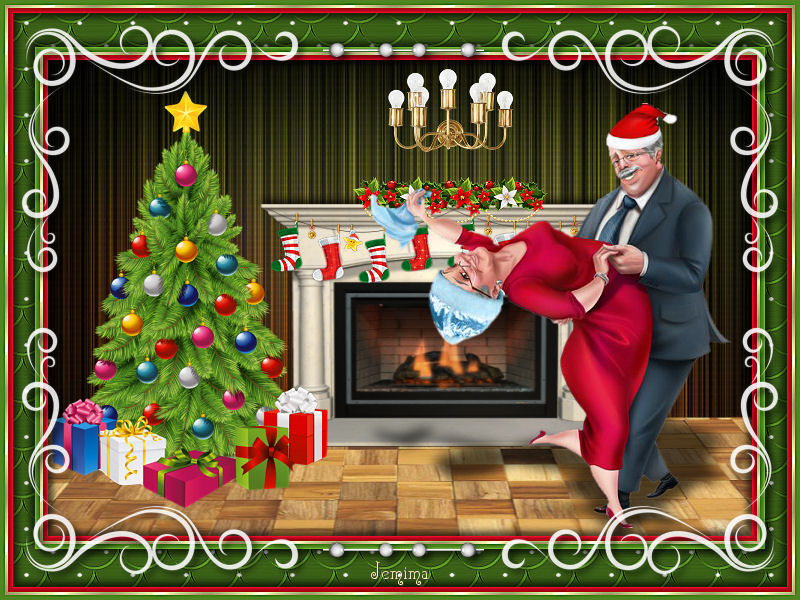
LAYERS >>> MERGE >>> MERGE ALL (Flatten)
Save as .jpg image
, |
| |
|
| |
|
| |
|