COLOURS USED
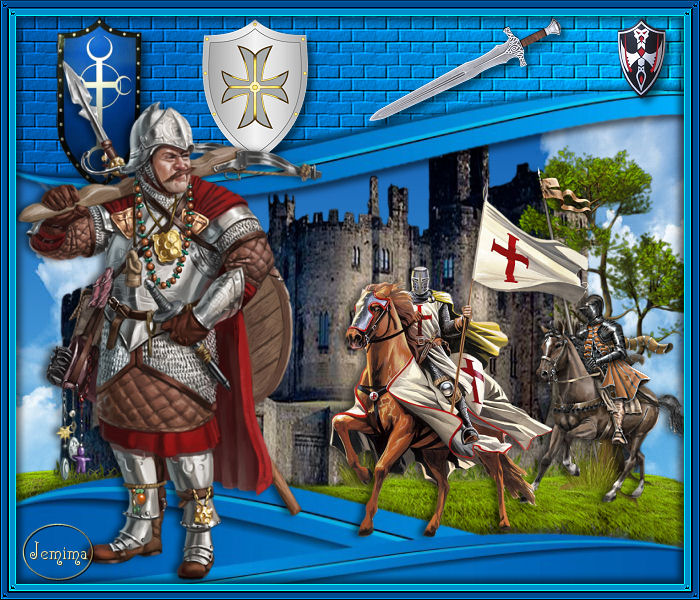
|
STEP 1
Open up the sky444 image in your PSP workspace
WINDOW >>> DUPLICATE
Close the original Image
LAYERS >>> Promote background layer
LAYERS >>> NEW RASTER LAYER.
SELECTIONS >>> SELECT ALL
Open up the 1035-7547 image in your PSP workspace
Right click on the Title Bar and select COPY from the options
Right click on the Title Bar of your tag image
and select PASTE INTO SELECTION from the options.
DESELECT
IMAGE >>> MIRROR
|
|
STEP 2
With your MAGIC WAND
Mode = Add (Shift)
Match Mode = RGB Value
Tolerance = 23
Feather = 3
Antialias =Checked
Sample Merged = UNCHECKED
PSP9 - X9: Check CONTIGUOUS
PSPX - X9: There is no " Sample Merged"
PSPX - X9: Use all layers = UNChecked
PSP9 - X9: ANTIALIAS = Outside .
Select the area indicated
(Keep selecting along lighter blue until all selected)
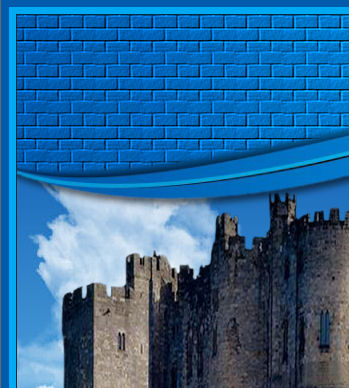
|
|
STEP 3
EFFECTS >>> TEXTURE EFFECTS >>> TEXTURE
COLOR = WHITE

DESELECT
SAVE YOUR WORK
|
STEP 4
EFFECTS >>> 3D EFFECTS >>> DROP SHADOW
Vertical & Horizontal offsets = 5
Colour = Black
Opacity = 55
Blur = 10.00
Repeat Drop Shadow effect changing
Vertical & Horizontal Offsets to - ( minus ) 5
Click OK
.
|
|
STEP 5
ACTIVATE Raster 1
Open up the Castle-Transp image in your PSP workspace
Right click on the Title Bar and select COPY from the options
Right click on the Title Bar of your tag image
and select PASTE AS NEW LAYER from the options.
IMAGE >>> RESIZE = 80%
Check "Lock aspect ratio."
Ensure "Resize all layers" is UNCHECKED
Resample using WEIGHTED AVERAGE
ADJUST >>> SHARPNESS >>> SHARPEN
EFFECTS >>> IMAGE EFFECTS >>> OFFSET
Horizontal Offset = 20
Vertical Offset = - ( minus ) 50
Edge Mode = Transparent
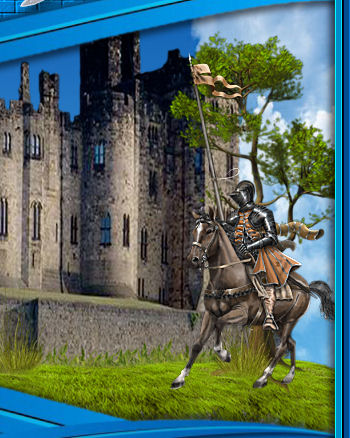
|
|
STEP 6
LAYERS >>> MERGE >>> MERGE VISIBLE
LAYERS >>> NEW RASTER LAYER
SELECTIONS >>> SELECT ALL
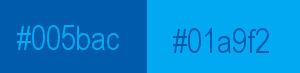
Flood fill with DARK BLUE #005bac
SELECTIONS >>> MODIFY >>> CONTRACT = 8
EDIT >>> CLEAR
Flood fill with LIGHT BLUE #01a9f2
SELECTIONS >>> MODIFY >>> CONTRACT = 8
EDIT >>> CLEAR
EFFECTS >>> 3D EFFECTS >>> DROP SHADOW
Vertical & Horizontal offsets = 1
Colour = Black
Opacity = 75
Blur = 0
Repeat Drop Shadow effect changing
Vertical & Horizontal Offsets to - ( minus ) 1
Click OK
DESELECT
SAVE YOUR WORK
|
|
STEP 7
With your MAGIC WAND
Mode = Replace
Match Mode = RGB Value
Tolerance = 0
Feather = 0
Antialias = UNChecked
Sample Merged = UNCHECKED
PSP9 - X9: Check CONTIGUOUS
PSPX - X9: There is no " Sample Merged"
PSPX - X9: Use all layers = UNChecked
Select the DARK BLUE border
,
|
STEP 8
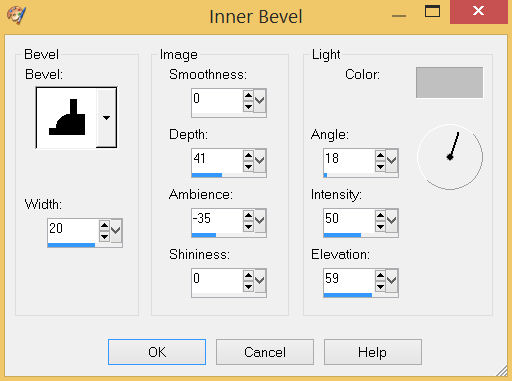
EFFECTS >>> 3D EFFECTS >>> INNER BEVEL
COLOUR = #c0c0c0
,
|
STEP 9
EFFECTS >>> EDGE EFFECTS >>> ENHANCE
DESELECT
With your MAGIC WAND ... Same settings
Select the LIGHT BLUE border |
|
STEP 10
EFFECTS >>> 3D EFFECTS >>> INNER BEVEL
Same settings
EFFECTS >>> EDGE EFFECTS >>> ENHANCE
DESELECT
|
|
STEP 11
EFFECTS >>> 3D EFFECTS >>> DROP SHADOW
Vertical & Horizontal offsets = 5
Colour = Black
Opacity = 55
Blur = 10.00
Repeat Drop Shadow effect changing
Vertical & Horizontal Offsets to - ( minus ) 5
Click OK
SAVE YOUR WORK
|
|
STEP 12
Open up the blue shield image in your PSP workspace
Right click on the Title Bar and select COPY from the options
Right click on the Title Bar of your tag image
and select PASTE AS NEW LAYER from the options.
IMAGE >>> RESIZE = 70%
Check "Lock aspect ratio."
Ensure "Resize all layers" is UNCHECKED
Resample using WEIGHTED AVERAGE
ADJUST >>> SHARPNESS >>> SHARPEN
EFFECTS >>> IMAGE EFFECTS >>> OFFSET
Horizontal Offset = - ( minus ) 250
Vertical Offset = 197
Edge Mode = Transparent |
|
STEP 13
EFFECTS >>> 3D EFFECTS >>> DROP SHADOW
Vertical & Horizontal offsets = 5
Colour = Black
Opacity = 55
Blur = 10.00
SAVE YOUR WORK |
STEP 14
Open up the Shield-Classic image in your PSP workspace
Right click on the Title Bar and select COPY from the options
Right click on the Title Bar of your tag image
and select PASTE AS NEW LAYER from the options.
IMAGE >>> RESIZE = 40%
Check "Lock aspect ratio."
Ensure "Resize all layers" is UNCHECKED
Resample using WEIGHTED AVERAGE
ADJUST >>> SHARPNESS >>> SHARPEN
EFFECTS >>> IMAGE EFFECTS >>> OFFSET
Horizontal Offset = - ( minus ) 95
Vertical Offset = 209
Edge Mode = Transparent
EFFECTS >>> 3D EFFECTS >>> DROP SHADOW
Same settings
SAVE YOUR WORK |
|
STEP 15
Open up the shield153 image in your PSP workspace
Right click on the Title Bar and select COPY from the options
Right click on the Title Bar of your tag image
and select PASTE AS NEW LAYER from the options.
IMAGE >>> RESIZE = 25%
Check "Lock aspect ratio."
Ensure "Resize all layers" is UNCHECKED
Resample using WEIGHTED AVERAGE
ADJUST >>> SHARPNESS >>> SHARPEN
EFFECTS >>> IMAGE EFFECTS >>> OFFSET
Horizontal Offset = 290
Vertical Offset = 244
Edge Mode = Transparent
EFFECTS >>> 3D EFFECTS >>> DROP SHADOW
Same settings
SAVE YOUR WORK |
|
STEP 16
Open up the sword202pv image in your PSP workspace
Right click on the Title Bar and select COPY from the options
Right click on the Title Bar of your tag image
and select PASTE AS NEW LAYER from the options.
IMAGE >>> FLIP
IMAGE >>> MIRROR
IMAGE >>> RESIZE = 40%
Check "Lock aspect ratio."
Ensure "Resize all layers" is UNCHECKED
Resample using WEIGHTED AVERAGE
ADJUST >>> SHARPNESS >>> SHARPEN
. |
STEP 17
EFFECTS >>> IMAGE EFFECTS >>> OFFSET
Horizontal Offset = 115
Vertical Offset = 230
Edge Mode = Transparent
EFFECTS >>> 3D EFFECTS >>> DROP SHADOW
Same settings
CLOSE Raster 1
LAYERS >>> MERGE >>> MERGE VISIBLE
OPEN Raster 1
LAYERS >>> ARRANGE >>> MOVE UP

SAVE YOUR WORK
,, |
STEP 18
ACTIVATE the Merged layer
Open up the KNIGHT image in your PSP workspace
Right click on the Title Bar and select COPY from the options
Right click on the Title Bar of your tag image
and select PASTE AS NEW LAYER from the options.
IMAGE >>> RESIZE = 55%
Check "Lock aspect ratio."
Ensure "Resize all layers" is UNCHECKED
Resample using WEIGHTED AVERAGE
ADJUST >>> SHARPNESS >>> SHARPEN MORE
EFFECTS >>> IMAGE EFFECTS >>> OFFSET
Horizontal Offset = 260
Vertical Offset = - ( minus ) 35
Edge Mode = Transparent
|
|
STEP 19
EFFECTS >>> 3D EFFECTS >>> DROP SHADOW
Vertical offset = 0
Horizontal offset = - ( minus ) 5
Colour = Black
Opacity = 60
Blur = 10.00
,
|
STEP 20
Open up the medieval-knight image in your PSP workspace
Right click on the Title Bar and select COPY from the options
Right click on the Title Bar of your tag image
and select PASTE AS NEW LAYER from the options.
IMAGE >>> RESIZE = 55%
Check "Lock aspect ratio."
Ensure "Resize all layers" is UNCHECKED
Resample using WEIGHTED AVERAGE
ADJUST >>> SHARPNESS >>> SHARPEN
EFFECTS >>> IMAGE EFFECTS >>> OFFSET
Horizontal Offset = 110
Vertical Offset = - ( minus ) 58
Edge Mode = Transparent
EFFECTS >>> 3D EFFECTS >>> DROP SHADOW
Same settings
SAVE YOUR WORK |
|
STEP 21
Open up the mercenary_by_rhineville image
in your PSP workspace
Right click on the Title Bar and select COPY from the options
Right click on the Title Bar of your tag image
and select PASTE AS NEW LAYER from the options.
IMAGE >>> RESIZE = 80%
Check "Lock aspect ratio."
Ensure "Resize all layers" is UNCHECKED
Resample using WEIGHTED AVERAGE
ADJUST >>> SHARPNESS >>> SHARPEN
EFFECTS >>> IMAGE EFFECTS >>> OFFSET
Horizontal Offset = - ( minus ) 180
Vertical Offset = - ( minus ) 20
Edge Mode = Transparent
EFFECTS >>> 3D EFFECTS >>> DROP SHADOW
Same settings
LAYERS >>> MERGE >>> MERGE VISIBLE
|
|
STEP 22
LAYERS >>> NEW RASTER LAYER
SELECT your TEXT tool
With a font of your choice add your name
, |
|
STEP 23
LAYERS >>> MERGE >>> MERGE ALL (Flatten)
Save as .jpg image
, |
| |
|
| |
|