STEP 1
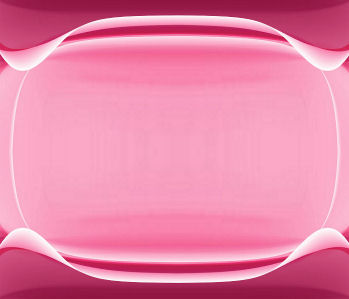
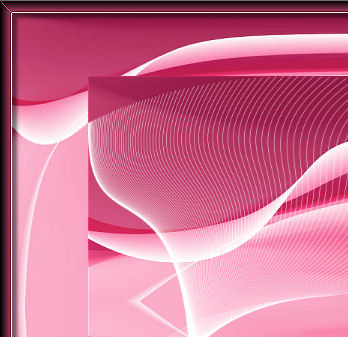
Open up the pink-waves image in your PSP workspace
WINDOW >>> DUPLICATE
Close the original Image
LAYERS >>> Promote background layer.
IMAGE >>> FLIP
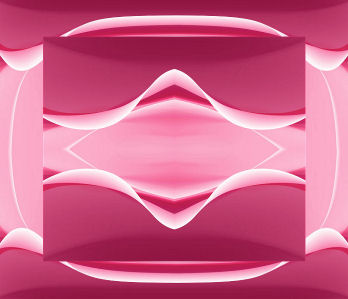
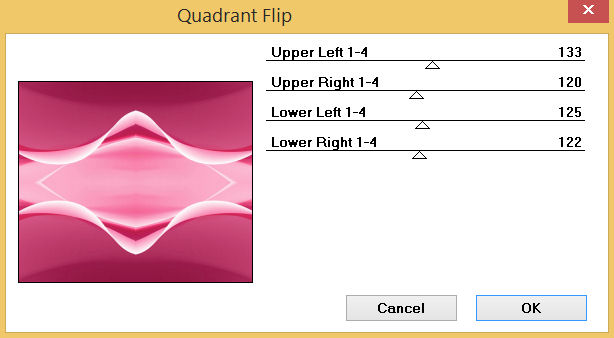
EFFECTS >>> PLUGINS >>> Mirror Rave >>> Quadrant Flip
.
|
STEP 2
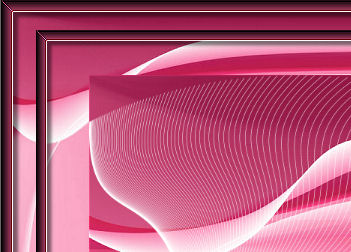
LAYERS >>> DUPLICATE
EFFECTS >>> DISTORTION EFFECTS >>> PUNCH
Strength = 100%
EDIT >>> Repeat Punch
|
|
STEP 3
LAYERS >>> ARRANGE >>> MOVE DOWN
ACTIVATE Raster 1
IMAGE >>> RESIZE = 75 %
Check "Lock aspect ratio."
Ensure "Resize all layers" is UNCHECKED
Resample using WEIGHTED AVERAGE
ADJUST >>> SHARPNESS >>> SHARPEN.
SAVE YOUR WORK
|
|
STEP 4
SELECTIONS >>> SELECT ALL
SELECTIONS >>> FLOAT
SELECTIONS >>> DEFLOAT
LAYERS >>> NEW RASTER LAYER
Open up the Designs-150058-1 image in your PSP workspace
Right click on the Title Bar and select COPY from the options
Right click on the Title Bar of your tag image
and select PASTE INTO SELECTION from the options.
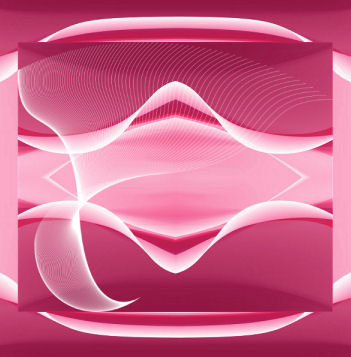
ADJUST >>> COLOUR BALANCE >>> NEGATIVE IMAGE
PSPX - PSP2018: IMAGE >>> NEGATIVE IMAGE
DESELECT
|
|
STEP 5
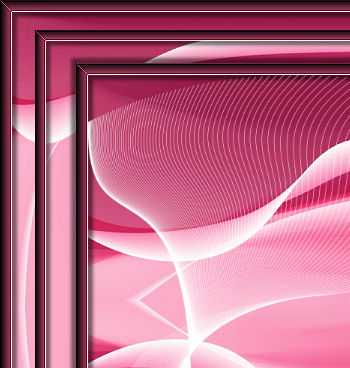
ACTIVATE Copy of Raster 1
LAYERS >>> NEW RASTER LAYER
SELECTIONS >>> SELECT ALL
SELECTIONS >>> MODIFY >>> CONTRACT = 12
EFFECTS >>> 3D EFFECTS >>> CHISEL
COLOUR = #ca4876 |
|
STEP 6
SELECTIONS >>> INVERT
EFFECTS >>> 3D EFFECTS >>> DROP SHADOW
Vertical & Horizontal offsets = 5
Colour = Black
Opacity = 50
Blur = 5.00
Repeat Drop Shadow effect changing
Vertical & Horizontal Offsets to - ( minus ) 5
Click OK
DESELECT
EFFECTS >>> EDGE EFFECTS >>> ENHANCE
EDIT >>> Repeat Enhance Edges
SAVE YOUR WORK
|
|
STEP 7
LAYERS >>> DUPLICATE
IMAGE >>> RESIZE = 90%
Check "Lock aspect ratio."
Ensure "Resize all layers" is UNCHECKED
Resample using WEIGHTED AVERAGE
ADJUST >>> SHARPNESS >>> SHARPEN
|
|
STEP 8
ACTIVATE Raster 1
SELECTIONS >>> SELECT ALL
SELECTIONS >>> FLOAT
SELECTIONS >>> DEFLOAT
LAYERS >>> NEW RASTER LAYER
EFFECTS >>> 3D EFFECTS >>> CHISEL
Same settings
DESELECT
|
STEP 9
EFFECTS >>> 3D EFFECTS >>> DROP SHADOW
Vertical & Horizontal offsets = 5
Colour = Black
Opacity = 50
Blur = 5.00
Repeat Drop Shadow effect changing
Vertical & Horizontal Offsets to - ( minus ) 5
Click OK
EFFECTS >>> EDGE EFFECTS >>> ENHANCE
EDIT >>> Repeat Enhance Edges
SAVE YOUR WORK
|
|
STEP 10
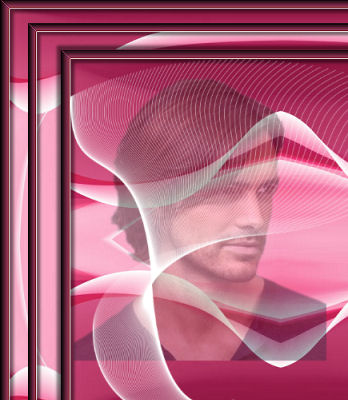
Stay on Raster 4
Open up the beau17 image in your PSP workspace
Right click on the Title Bar and select COPY from the options
Right click on the Title Bar of your tag image
and select PASTE AS NEW LAYER from the options.
IMAGE >>> RESIZE = 70%
Check "Lock aspect ratio."
Ensure "Resize all layers" is UNCHECKED
Resample using WEIGHTED AVERAGE
EFFECTS >>> IMAGE EFFECTS >>> OFFSET
Horizontal Offset = - ( minus ) 100
Vertical Offset = 25
Edge Mode = Transparent
In your LAYER PALETTE change the OPACITY to 40%
|
|
STEP 11
ACTIVATE Raster 2
Open up the Image12 image in your PSP workspace
Right click on the Title Bar and select COPY from the options
Right click on the Title Bar of your tag image
and select PASTE AS NEW LAYER from the options.
IMAGE >>> MIRROR
IMAGE >>> RESIZE = 90%
Check "Lock aspect ratio."
Ensure "Resize all layers" is UNCHECKED
Resample using WEIGHTED AVERAGE
,
|
STEP 12
EFFECTS >>> IMAGE EFFECTS >>> OFFSET
Horizontal Offset = - ( minus ) 13
Vertical Offset = - ( minus ) 176
Edge Mode = Transparent
EFFECTS >>> 3D EFFECTS >>> DROP SHADOW
Vertical & Horizontal offsets = 5
Colour = Black
Opacity = 50
Blur = 10.00
Repeat Drop Shadow effect changing
Vertical & Horizontal Offsets to - ( minus ) 5
Click OK

|
STEP 13
Open up the rose-00 image in your PSP workspace
Right click on the Title Bar and select COPY from the options
Right click on the Title Bar of your tag image
and select PASTE AS NEW LAYER from the options.
IMAGE >>> RESIZE = 75%
Check "Lock aspect ratio."
Ensure "Resize all layers" is UNCHECKED
Resample using WEIGHTED AVERAGE
ADJUST >>> SHARPNESS >>> SHARPEN
EFFECTS >>> IMAGE EFFECTS >>> OFFSET
Horizontal Offset = - ( minus ) 100
Vertical Offset = - ( minus ) 155
Edge Mode = Transparent |
|
STEP 14
EFFECTS >>> 3D EFFECTS >>> DROP SHADOW
Vertical & Horizontal offsets = 5
Colour = Black
Opacity = 50
Blur = 10.00
Repeat Drop Shadow effect changing
Vertical & Horizontal Offsets to - ( minus ) 5
Click OK
SAVE YOUR WORK
|
STEP 15
Open up the 6216aca image in your PSP workspace
Right click on the Title Bar and select COPY from the options
Right click on the Title Bar of your tag image
and select PASTE AS NEW LAYER from the options.
IMAGE >>> RESIZE = 55%
Check "Lock aspect ratio."
Ensure "Resize all layers" is UNCHECKED
Resample using WEIGHTED AVERAGE
EFFECTS >>> IMAGE EFFECTS >>> OFFSET
Horizontal Offset = 110
Vertical Offset = - ( minus ) 75
Edge Mode = Transparent, |
|
STEP 16
EFFECTS >>> 3D EFFECTS >>> DROP SHADOW
Vertical & Horizontal offsets = 5
Colour = Black
Opacity = 50
Blur = 10.00
Repeat Drop Shadow effect changing
Vertical & Horizontal Offsets to - ( minus ) 5
Click OK
, |
STEP 17
Open up the follow your dreams2 image in your PSP workspace
Right click on the Title Bar and select COPY from the options
Right click on the Title Bar of your tag image
and select PASTE AS NEW LAYER from the options.
IMAGE >>> RESIZE = 40%
Check "Lock aspect ratio."
Ensure "Resize all layers" is UNCHECKED
Resample using WEIGHTED AVERAGE
, |
STEP 18
ADJUST >>> COLOUR BALANCE >>> NEGATIVE IMAGE
PSPX - PSP2018: IMAGE >>> NEGATIVE IMAGE
EFFECTS >>> 3D EFFECTS >>> DROP SHADOW
Vertical offset = - ( minus ) 5
Horizontal offset = 5
Colour = Black
Opacity = 65
Blur = 5.00
EFFECTS >>> IMAGE EFFECTS >>> OFFSET
Horizontal Offset = 135
Vertical Offset = 155
Edge Mode = Transparent |
|
STEP 19
LAYERS >>> MERGE >>> MERGE VISIBLE
SAVE YOUR WORK
, |
STEP 20
LAYERS >>> NEW RASTER LAYER
SELECT your TEXT tool
With a font of your choice add your name
, |
STEP 21
LAYERS >>> MERGE >>> MERGE ALL (Flatten)
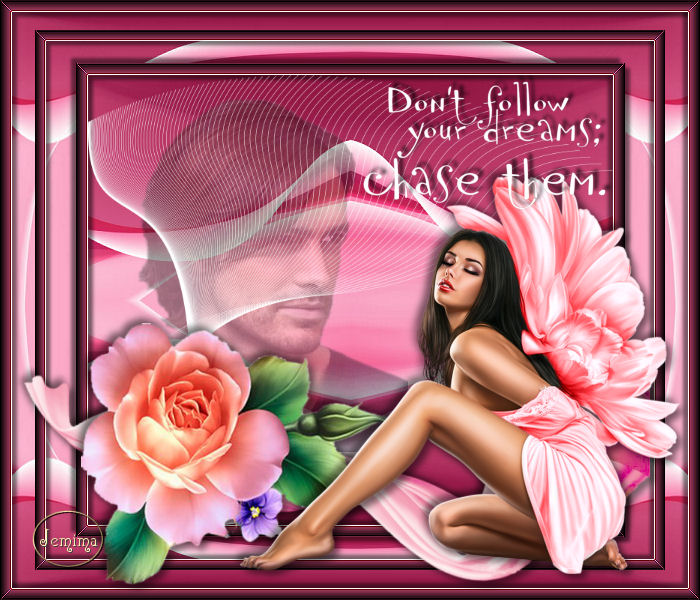
Save as .jpg image
, |
| |
|
| |
|