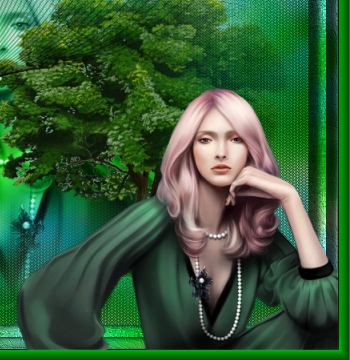
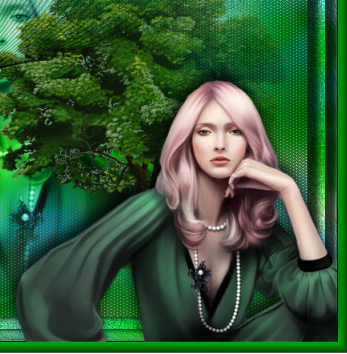
STEP 1
.
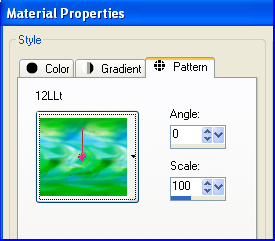
In your MATERIALS PALETTE load
12LLt pattern in the foreground
|
|
STEP 2
Open a new image 700 x 600
Transparent background
PSP9: Colour Depth = 16 Million Colors (24bit)
PSPX-X9: Colour Depth RGB = 8bits/channel
Flood fill with PATTERN
LAYERS >>> DUPLICATE
CLOSE Raster 1
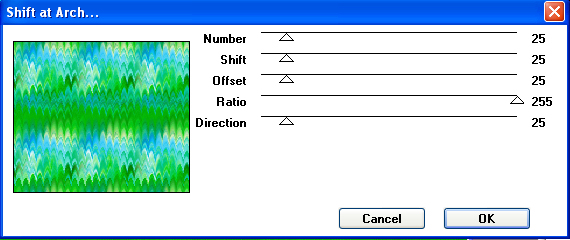
EFFECTS >>> PLUGINS >>> MuRa's Seamless >>> Shift at Arch.
|
STEP 3
ADJUST >>> BLUR >>> GAUSSIAN BLUR
Radius = 10.00
EFFECTS >>> PLUGINS >>> L en K >>> Dimitri
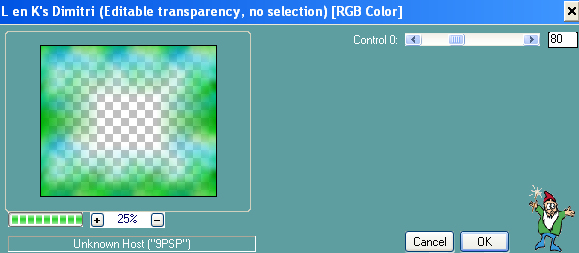 .
.
|
STEP 4
IMAGE >>> RESIZE = 85%
Ensure "Resize all layers" is UNCHECKED
Resample using WEIGHTED AVERAGE
ADJUST >>> SHARPNESS >>> SHARPEN
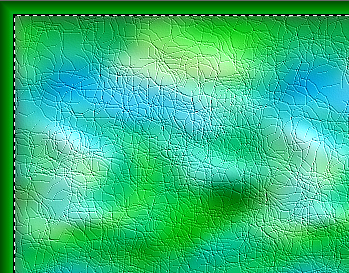
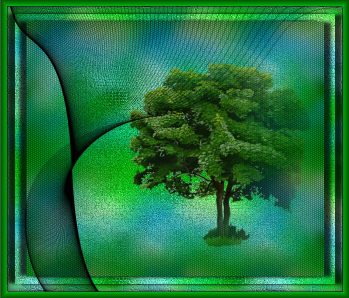
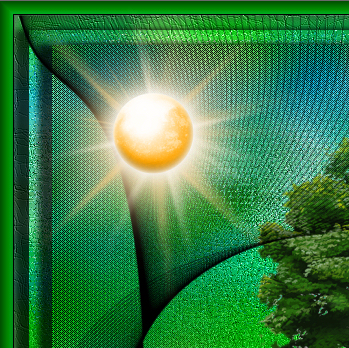
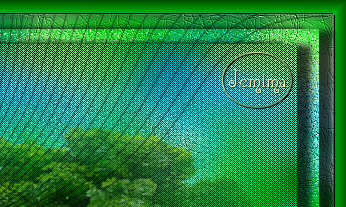
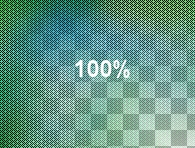
EFFECTS >>> PLUGINS >>> SCREENWORKS >>> Pin Hole
~~~~~~~~~~~~~
(Top left corner)
 . .
|
|
STEP 5
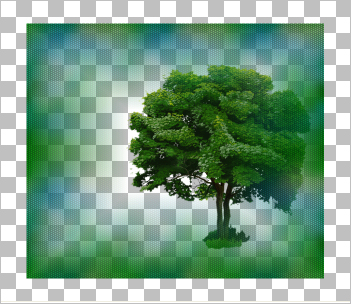
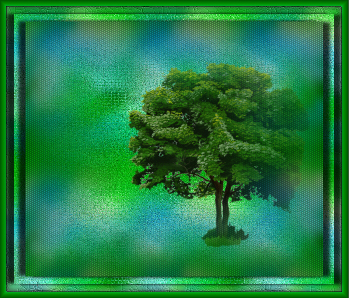
Open up the Hemphill_Jacob_Foliage image
in your PSP workspace
Right click on the Title Bar and select COPY from the options
Right click on the Title Bar of your tag image
and select PASTE AS NEW LAYER from the options.
IMAGE >>> RESIZE = 70%
Ensure "Resize all layers" is UNCHECKED
Resample using WEIGHTED AVERAGE
ADJUST >>> SHARPNESS >>> SHARPEN
,
|
STEP 6
LAYERS >>> ARRANGE >>> MOVE DOWN
EFFECTS >>> IMAGE EFFECTS >>> OFFSET
Horizontal Offset = 90
Vertical Offset = - ( minus ) 10
Edge Mode = Transparent
SAVE YOUR WORK
|
|
STEP 7
CLOSE Copy of Raster 1 and Raster 2
OPEN & ACTIVATE Raster 1
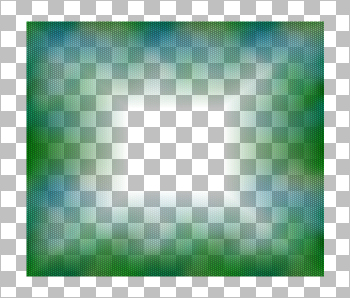
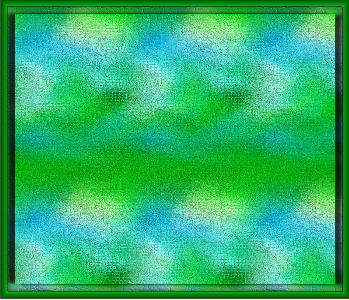
EFFECTS >>> PLUGINS >>> AAA Frames >>> Frame Works
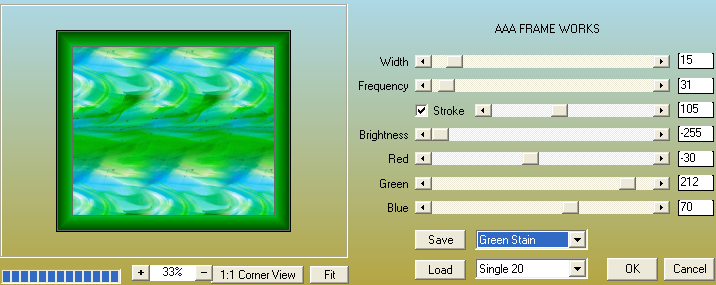
,
|
STEP 8
SELECTIONS >>> SELECT ALL
SELECTIONS >>> MODIFY >>> CONTRACT = 15
EFFECTS >>> 3D EFFECTS >>> DROP SHADOW
Vertical & Horizontal offsets = 1
Colour = Black
Opacity = 100
Blur = 0
Repeat Drop Shadow effect changing
Vertical & Horizontal Offsets to - ( minus ) 1
Click OK
EFFECTS >>> TEXTURE EFFECTS >>> FINE LEATHER
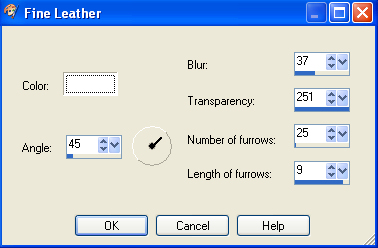 , ,
|
STEP 9
ADJUST >>> SHARPNESS >>> SHARPEN
DO NOT DESELECT
|
|
STEP 10
SELECTIONS >>> MODIFY >>> CONTRACT = 15
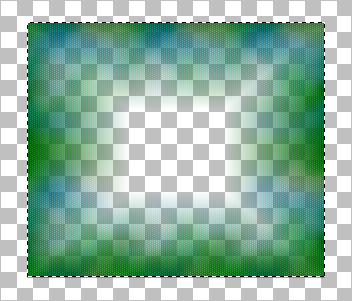
EFFECTS >>> TEXTURE EFFECTS >>> MOSAIC ANTIQUE
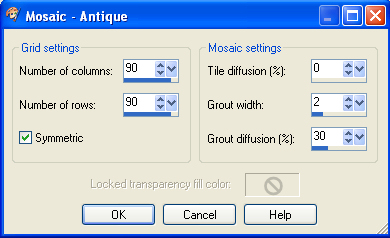
,
|
STEP 11
EFFECTS >>> 3D EFFECTS >>> DROP SHADOW
Vertical offset = 1
Horizontal offset = 14
Colour = Black
Opacity = 75
Blur = 10.00
EFFECTS >>> 3D EFFECTS >>> DROP SHADOW
Vertical offset = - ( minus ) 1
Horizontal offset = - ( minus ) 14
Colour = Black
Opacity = 70
Blur = 0
DESELECT
SAVE YOUR WORK
|
|
STEP 12
CLOSE Raster 1
OPEN & ACTIVATE Copy of Raster 1
With your MAGIC WAND
Mode = Replace
Match Mode = RGB Value
Tolerance = 0
Feather = 0
Antialias = UNchecked
Sample Merged = UNCHECKED
PSP9 - X9: Check CONTIGUOUS
PSPX - X9: There is no " Sample Merged"
PSPX - X9: Use all layers = UNChecked
Select the OUTER transparent area
SELECTIONS >>> INVERT |
|
STEP 13
EFFECTS >>> 3D EFFECTS >>> DROP SHADOW
Vertical offset = - ( minus ) 1
Horizontal offset = - ( minus ) 14
Colour = Black
Opacity = 70
Blur = 0
EFFECTS >>> 3D EFFECTS >>> DROP SHADOW
Vertical offset = 1
Horizontal offset = 14
Colour = Black
Opacity = 75
Blur = 10.00
DESELECT
OPEN Raster 1 and Raster 2 |
|
STEP 14
With Copy of Raster 1 active
Open up the Designs-150058-2 image in your PSP workspace
Right click on the Title Bar and select COPY from the options
Right click on the Title Bar of your tag image
and select PASTE AS NEW LAYER from the options.
IMAGE >>> RESIZE = 95%
Ensure "Resize all layers" is UNCHECKED
Resample using WEIGHTED AVERAGE
SAVE YOUR WORK
|
|
STEP 15
Open up the sun-352L image in your PSP workspace
Right click on the Title Bar and select COPY from the options
Right click on the Title Bar of your tag image
and select PASTE AS NEW LAYER from the options.
IMAGE >>> RESIZE = 60%
Ensure "Resize all layers" is UNCHECKED
Resample using WEIGHTED AVERAGE
ADJUST >>> SHARPNESS >>> SHARPEN
EFFECTS >>> IMAGE EFFECTS >>> OFFSET
Horizontal Offset = - ( minus ) 190
Vertical Offset = 145
Edge Mode = Transparent |
|
STEP 16
ACTIVATE Raster 1
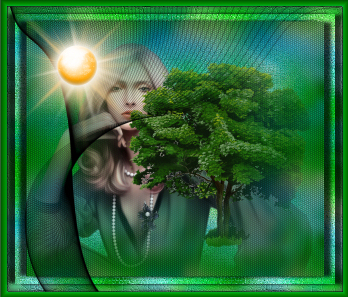
Open up the portrait_by_leejun image in your PSP workspace
Right click on the Title Bar and select COPY from the options
Right click on the Title Bar of your tag image
and select PASTE AS NEW LAYER from the options.
IMAGE >>> MIRROR
IMAGE >>> RESIZE = 85%
Ensure "Resize all layers" is UNCHECKED
Resample using WEIGHTED AVERAGE
EFFECTS >>> IMAGE EFFECTS >>> OFFSET
Horizontal Offset = - ( minus ) 11
Vertical Offset = - ( minus ) 20
Edge Mode = Transparent |
|
STEP 17
LAYERS >>> DUPLICATE
LAYERS >>> ARRANGE >>> BRING TO TOP
CLOSE Copy of Raster 5
ACTIVATE Raster 5
In your LAYER PALETTE change the
BLEND MODE to LUMINANCE (L) |
|
STEP 18
OPEN & ACTIVATE Copy of Raster 5
IMAGE >>> MIRROR
IMAGE >>> RESIZE = 70%
Ensure "Resize all layers" is UNCHECKED
Resample using WEIGHTED AVERAGE
ADJUST >>> SHARPNESS >>> SHARPEN
EFFECTS >>> IMAGE EFFECTS >>> OFFSET
Horizontal Offset = 126
Vertical Offset = - ( minus ) 108
Edge Mode = Transparent
SAVE YOUR WORK |
|
STEP 19
EFFECTS >>> 3D EFFECTS >>> DROP SHADOW
Vertical offset = - ( minus ) 11
Horizontal offset = - ( minus ) 4
Colour = Black
Opacity = 75
Blur = 20.00 |
|
STEP 20
Open up the follow your dreams image in your PSP workspace
Right click on the Title Bar and select COPY from the options
Right click on the Title Bar of your tag image
and select PASTE AS NEW LAYER from the options.
IMAGE >>> RESIZE = 40%
Ensure "Resize all layers" is UNCHECKED
Resample using WEIGHTED AVERAGE
ADJUST >>> COLOUR BALANCE >>> NEGATIVE IMAGE
PSPX - X9: IMAGE >>> NEGATIVE IMAGE
, |
STEP 21
EFFECTS >>> IMAGE EFFECTS >>> OFFSET
Horizontal Offset = - ( minus ) 191
Vertical Offset = - ( minus ) 205
Edge Mode = Transparent
EFFECTS >>> 3D EFFECTS >>> DROP SHADOW
Vertical offset = 1
Horizontal offset = - ( minus ) 4
Colour = Black
Opacity = 75
Blur = 0 |
|
STEP 22
LAYERS >>> MERGE >>> MERGE VISIBLE
LAYERS >>> NEW RASTER LAYER
SELECT your TEXT tool
With a font of your choice add your name |
|
STEP 23
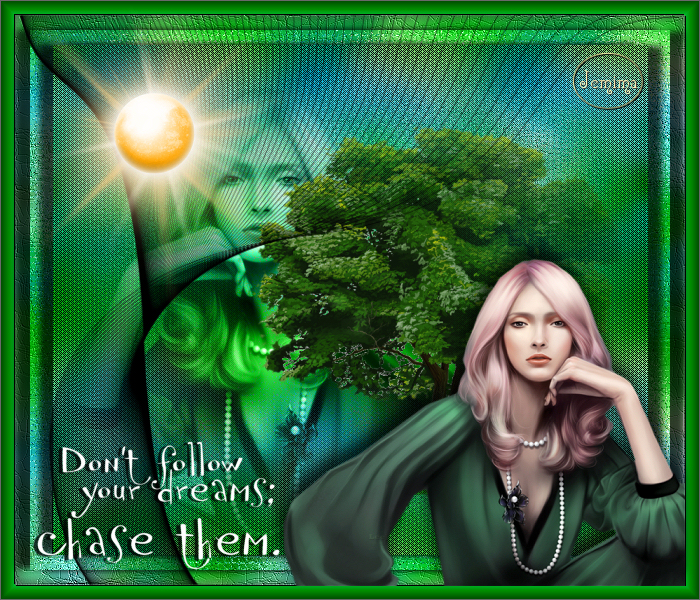
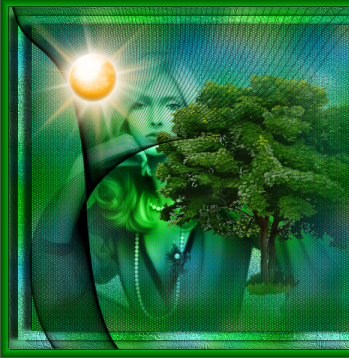
LAYERS >>> MERGE >>> MERGE ALL (Flatten)
Save as .jpg image
, |
| |
|
| |
|