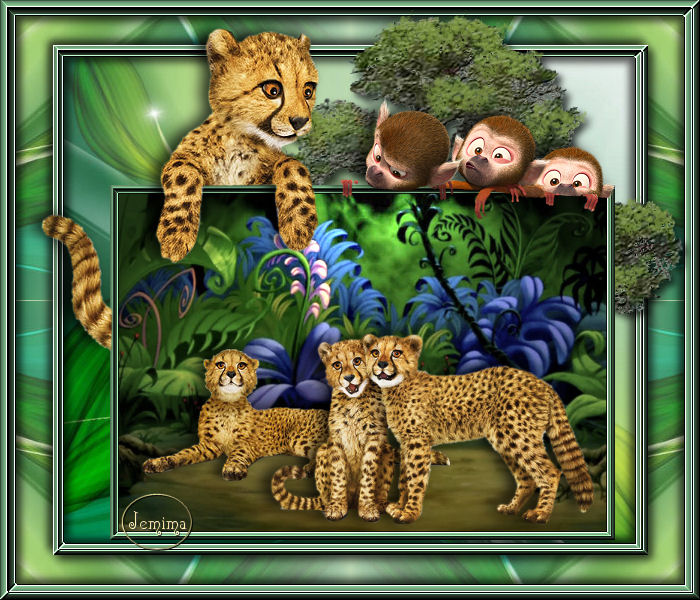
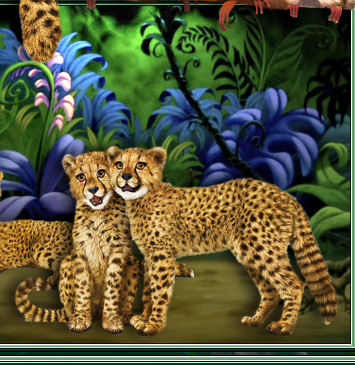
STEP 1
Open a new image 700 x 600
Transparent background
PSP9: Colour Depth = 16 Million Colors (24bit)
PSPX-X9: Colour Depth RGB = 8bits/channel
.SELECTIONS >>> SELECT ALL
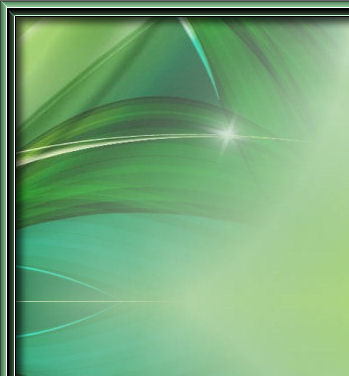
Open up the 6610-bgd image in your PSP workspace
Right click on the Title Bar and select COPY from the options
Right click on the Title Bar of your tag image
and select PASTE INTO SELECTION from the options.
DESELECT
.
|
STEP 2
LAYERS >>> DUPLICATE
CLOSE Copy of Raster 1
ACTIVATE Raster 1
EFFECTS >>> PLUGINS >>> SIMPLE >>> QUICK TILE
EFFECTS >>> REFLECTION EFFECTS >>>
ROTATING MIRROR
Horizontal Offset = 0
Vertical Offset = n/a
Rotation Angle = 0
Edge Mode = Reflect
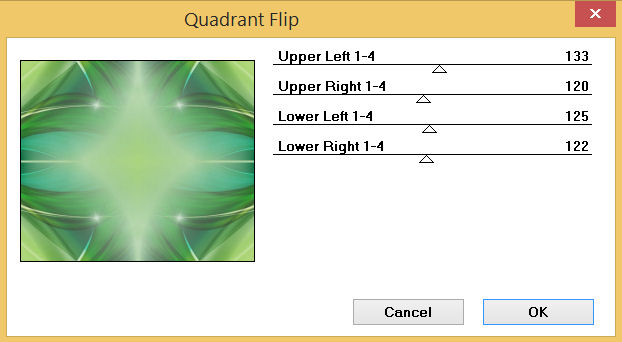
EFFECTS >>> PLUGINS >>> Mirror Rave >>> Quadrant Flip
|
STEP 3
LAYERS >>> NEW RASTER LAYER
SELECTIONS >>> SELECT ALL
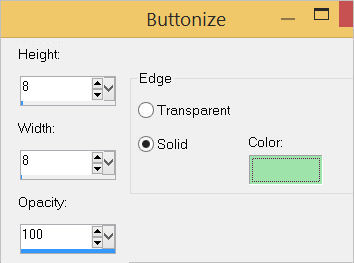
EFFECTS >>> 3D EFFECTS >>> BUTTONIZE
COLOUR = #9de3aa |
|
STEP 4
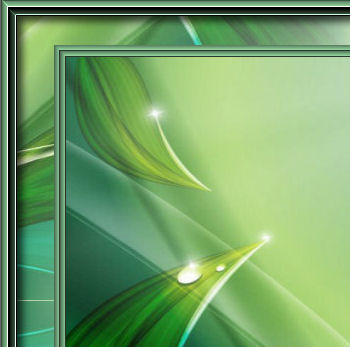
SELECTIONS >>> MODIFY >>> CONTRACT = 8
EFFECTS >>> 3D EFFECTS >>> DROP SHADOW
Vertical & Horizontal offsets = 1
Colour = Black
Opacity = 75
Blur = 0
Repeat Drop Shadow effect changing
Vertical & Horizontal Offsets to - ( minus ) 1
Click OK
LAYERS >>> NEW RASTER LAYER
EFFECTS >>> 3D EFFECTS >>> BUTTONIZE
Same settings
Repeat both Drop Shadows
DESELECT
|
|
STEP 5
IMAGE >>> FLIP
IMAGE >>> MIRROR
LAYERS >>> MERGE >>> MERGE DOWN
EFFECTS >>> EDGE EFFECTS >>> ENHANCE MORE
EFFECTS >>> 3D EFFECTS >>> DROP SHADOW
Vertical & Horizontal offsets = 5
Colour = Black
Opacity = 70
Blur = 12.00
Repeat Drop Shadow effect changing
Vertical & Horizontal Offsets to - ( minus ) 5
Click OK
LAYERS >>> MERGE >>> MERGE DOWN
SAVE YOUR WORK |
|
STEP 6
OPEN & ACTIVATE Copy of Raster 1
IMAGE >>> RESIZE = 85%
Ensure "Resize all layers" is UNCHECKED
Resample using WEIGHTED AVERAGE
SELECTIONS >>> SELECT ALL
SELECTIONS >>> FLOAT
SELECTIONS >>> DEFLOAT
LAYERS >>> NEW RASTER LAYER
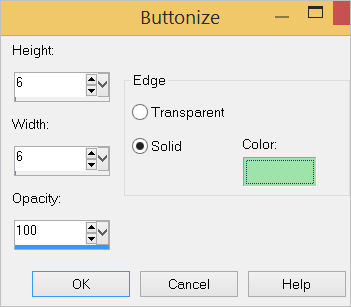
EFFECTS >>> 3D EFFECTS >>> BUTTONIZE
COLOUR = Same as before
|
|
STEP 7
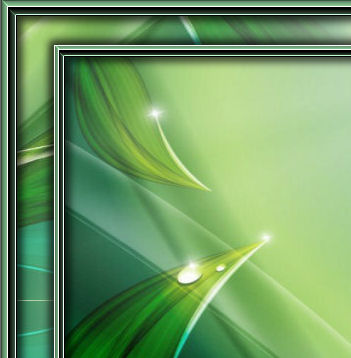
SELECTIONS >>> MODIFY >>> CONTRACT = 6
EFFECTS >>> 3D EFFECTS >>> DROP SHADOW
Vertical & Horizontal offsets = 1
Colour = Black
Opacity = 75
Blur = 0
Repeat Drop Shadow effect changing
Vertical & Horizontal Offsets to - ( minus ) 1
Click OK
LAYERS >>> NEW RASTER LAYER
EFFECTS >>> 3D EFFECTS >>> BUTTONIZE
Same settings
Repeat both Drop Shadows
DESELECT
|
|
STEP 8
IMAGE >>> FLIP
IMAGE >>> MIRROR
LAYERS >>> MERGE >>> MERGE DOWN
EFFECTS >>> EDGE EFFECTS >>> ENHANCE MORE
EFFECTS >>> 3D EFFECTS >>> DROP SHADOW
Vertical & Horizontal offsets = 5
Colour = Black
Opacity = 70
Blur = 12.00
Repeat Drop Shadow effect changing
Vertical & Horizontal Offsets to - ( minus ) 5
Click OK
LAYERS >>> MERGE >>> MERGE DOWN
SAVE YOUR WORK
|
|
STEP 9
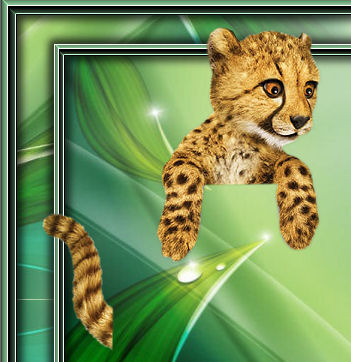
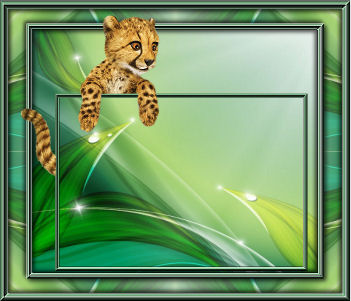
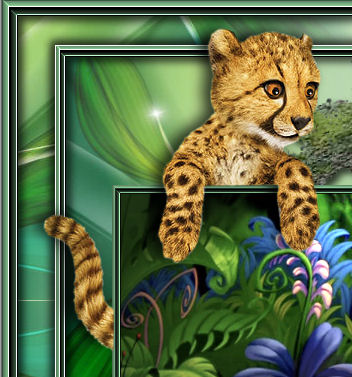
Open up the cheetah-2452 image in your PSP workspace
Right click on the Title Bar and select COPY from the options
Right click on the Title Bar of your tag image
and select PASTE AS NEW LAYER from the options.
IMAGE >>> RESIZE = 75%
Ensure "Resize all layers" is UNCHECKED
Resample using WEIGHTED AVERAGE
ADJUST >>> SHARPNESS >>> SHARPEN
EFFECTS >>> IMAGE EFFECTS >>> OFFSET
Horizontal Offset = - ( minus ) 170
Vertical Offset = 110
Edge Mode = Transparent |
|
STEP 10
LAYERS >>> NEW RASTER LAYER
LAYERS >>> ARRANGE >>> MOVE DOWN
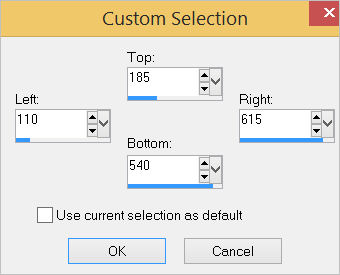
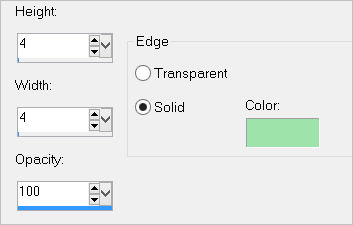
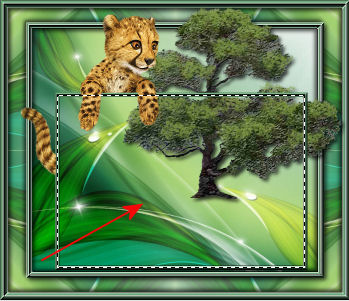
Choose your SELECTION TOOL then click on the CUSTOM SELECTION symbol
and enter these coordinates. |
|
STEP 11
EFFECTS >>> 3D EFFECTS >>> BUTTONIZE
Same colour as before.
|
|
STEP 12
SELECTIONS >>> MODIFY >>> CONTRACT = 4
LAYERS >>> NEW RASTER LAYER
EFFECTS >>> 3D EFFECTS >>> BUTTONIZE
Same colour as before.
IMAGE >>> FLIP
IMAGE >>> MIRROR
DESELECT
EFFECTS >>> 3D EFFECTS >>> DROP SHADOW
Vertical & Horizontal offsets = 1
Colour = Black
Opacity = 75
Blur = 0
Repeat Drop Shadow effect changing
Vertical & Horizontal Offsets to - ( minus ) 1
Click OK
LAYERS >>> MERGE >>> MERGE DOWN
EFFECTS >>> EDGE EFFECTS >>> ENHANCE
SAVE YOUR WORK |
|
STEP 13
ACTIVATE Copy of Raster 1
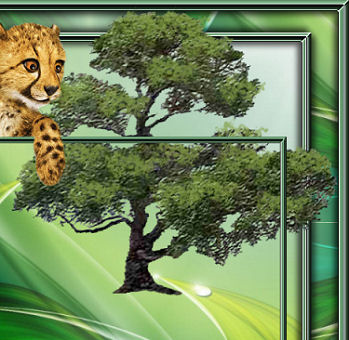
Open up the tree10 image in your PSP workspace
Right click on the Title Bar and select COPY from the options
Right click on the Title Bar of your tag image
and select PASTE AS NEW LAYER from the options.
EFFECTS >>> IMAGE EFFECTS >>> OFFSET
Horizontal Offset = 115
Vertical Offset = 95
Edge Mode = Transparent, |
|
STEP 14
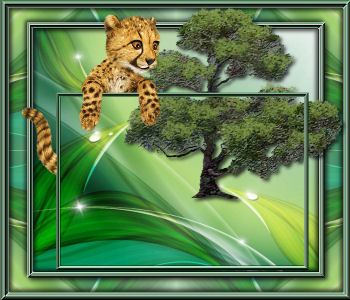
EFFECTS >>> 3D EFFECTS >>> DROP SHADOW
Vertical & Horizontal offsets = 5
Colour = Black
Opacity = 75
Blur = 10.00 |
|
STEP 15
ACTIVATE Raster 3
With your MAGIC WAND
Mode = Replace
Match Mode = RGB Value
Tolerance = 0
Feather = 0
Antialias = UNchecked
Sample Merged = UNCHECKED
PSP9 - X9: Check CONTIGUOUS
PSPX - X9: There is no " Sample Merged"
PSPX - X9: Use all layers = UNChecked
Select the area indicated
SELECTIONS >>> MODIFY >>> EXPAND = 4 |
|
STEP 16
LAYERS >>> NEW RASTER LAYER
LAYERS >>> ARRANGE >>> MOVE DOWN
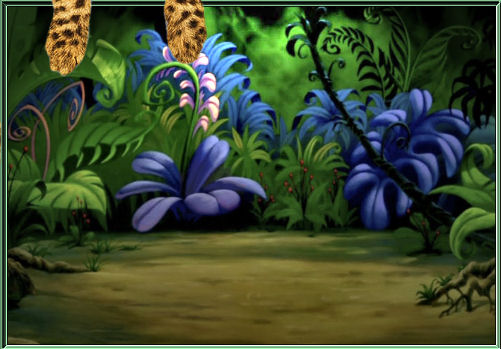
Open up the jungle-bgd-655 image in your PSP workspace
Right click on the Title Bar and select COPY from the options
Right click on the Title Bar of your tag image
and select PASTE INTO SELECTION from the options.
DESELECT |
|
STEP 17
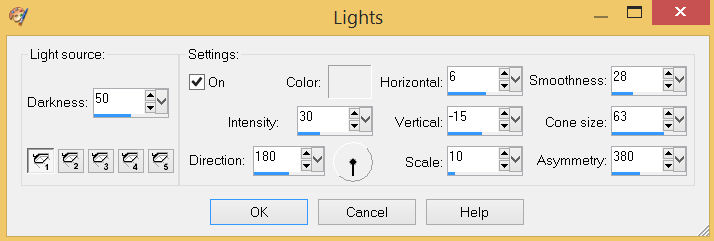
EFFECTS >>> ILLUMINATION EFFECTS >>> LIGHTS
Select "light source 2" , "light source 3" , "light source 4" , "light source 5"
Ensure the "Settings" are turned off. (Unchecked)
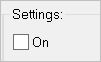
Select "Light source:1" and enter these settings
COLOUR = #f0f0f0
SAVE YOUR WORK
, |
STEP 18
ACTIVATE Raster 2
EFFECTS >>> 3D EFFECTS >>> DROP SHADOW
Vertical offset = - ( minus ) 2
Horizontal offset = - ( minus ) 9
Colour = Black
Opacity = 75
Blur = 20.00 |
|
STEP 19
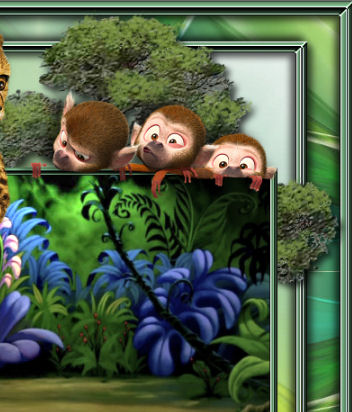
Open up the monkeys-3 image in your PSP workspace
Right click on the Title Bar and select COPY from the options
Right click on the Title Bar of your tag image
and select PASTE AS NEW LAYER from the options.
IMAGE >>> RESIZE = 50%
Ensure "Resize all layers" is UNCHECKED
Resample using WEIGHTED AVERAGE
ADJUST >>> SHARPNESS >>> SHARPEN
EFFECTS >>> IMAGE EFFECTS >>> OFFSET
Horizontal Offset = 125
Vertical Offset = 134
Edge Mode = Transparent
EFFECTS >>> 3D EFFECTS >>> DROP SHADOW
Same settings
LAYERS >>> MERGE >>> MERGE VISIBLE
SAVE YOUR WORK
|
|
STEP 20
Open up the telus-us-easy-roam image
in your PSP workspace
Right click on the Title Bar and select COPY from the options
Right click on the Title Bar of your tag image
and select PASTE AS NEW LAYER from the options.
IMAGE >>> RESIZE = 50%
Ensure "Resize all layers" is UNCHECKED
Resample using WEIGHTED AVERAGE
ADJUST >>> SHARPNESS >>> SHARPEN
Reposition with your MOVER tool |
|
STEP 21
EFFECTS >>> 3D EFFECTS >>> DROP SHADOW
Same settings
, |
STEP 22
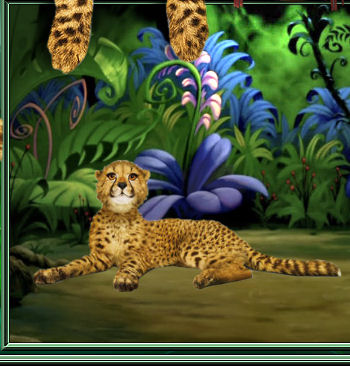
Open up the cheetahs image
in your PSP workspace
Right click on the Title Bar and select COPY from the options
Right click on the Title Bar of your tag image
and select PASTE AS NEW LAYER from the options.
IMAGE >>> RESIZE = 60%
Ensure "Resize all layers" is UNCHECKED
Resample using WEIGHTED AVERAGE
ADJUST >>> SHARPNESS >>> SHARPEN
Reposition with your MOVER tool
EFFECTS >>> 3D EFFECTS >>> DROP SHADOW
Same settings |
|
STEP 23
LAYERS >>> MERGE >>> MERGE VISIBLE
LAYERS >>> NEW RASTER LAYER
SELECT your TEXT tool
With a font of your choice add your name |
|
STEP 24
LAYERS >>> MERGE >>> MERGE ALL (Flatten)
Save as .jpg image
, |
| |
|
| |
|