|
STEP 1
Open up the IMG_64742 image in your PSP workspace
WINDOW >>> DUPLICATE
Close the original Image
LAYERS >>> Promote background layer.
EFFECTS >>> PLUGINS >>> Transparency >>> Eliminate Black
LAYERS >>> NEW RASTER LAYER
Flood fill with RED #941419
LAYERS >>> ARRANGE >>> MOVE DOWN.
|
|
STEP 2
ACTIVATE Raster 1
LAYERS >>> DUPLICATE
IMAGE >>> MIRROR
LAYERS >>> MERGE >>> MERGE DOWN
|
|
STEP 3
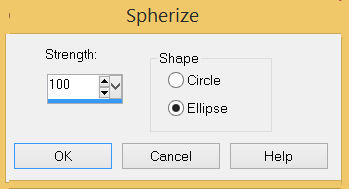
EFFECTS>>> GEOMETRIC EFFECTS >>> SPHERIZE.
|
|
STEP 4
EDIT >>> Repeat Spherize
EDIT >>> Repeat Spherize
EDIT >>> Repeat Spherize
|
|
STEP 5
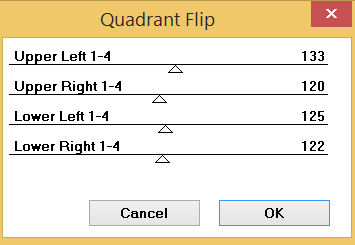
EFFECTS >>> PLUGINS >>> Mirror Rave >>> Quadrant Flip
SAVE YOUR WORK |
|
STEP 6
LAYERS >>> MERGE >>> MERGE DOWN
IMAGE >>> RESIZE = 90%
Check "Lock aspect ratio."
Ensure "Resize all layers" is UNCHECKED
Resample using WEIGHTED AVERAGE
LAYERS >>> NEW RASTER LAYER
Flood fill with RED #941419
LAYERS >>> ARRANGE >>> MOVE DOWN.
|
STEP 7
Activate Raster 2
With your MAGIC WAND
Mode = Replace
Match Mode = RGB Value
Tolerance = 25
Feather = 0
Antialias = Checked
Sample Merged = UNCHECKED
PSP9 - PSP2018: Check CONTIGUOUS
PSPX - PSP2018: There is no " Sample Merged"
PSPX - PSP2018: Use all layers = UNChecked
PSP9 - PSP2018: ANTIALIAS = Outside
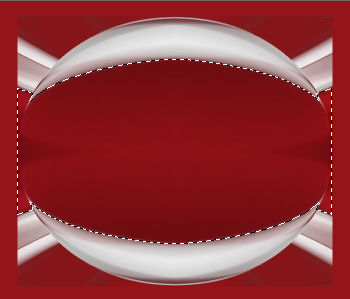
Select the CENTRE area
indicated,
|
|
STEP 8
LAYERS >>> NEW RASTER LAYER
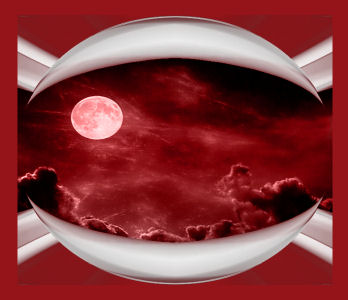
Open up the night sky image in your PSP workspace
Right click on the Title Bar and select COPY from the options
Right click on the Title Bar of your tag image
and select PASTE INTO SELECTION from the options.
DESELECT
In your LAYER PALETTE change the
BLEND MODE to LUMINANCE (L)
SAVE YOUR WORK
|
|
STEP 9
Open up the Glitter-93 image in your PSP workspace
Right click on the Title Bar and select COPY from the options
Right click on the Title Bar of your tag image
and select PASTE AS NEW LAYER from the options.
EFFECTS >>> IMAGE EFFECTS >>> OFFSET
Horizontal Offset = 0
Vertical Offset = 100
Edge Mode = Transparent |
|
STEP 10
VIEW >>> RULERS
Select your RASTER DEFORM tool
Mode = SCALE
use default settings
PSPX - PSP2018:Select your PICK tool
Move the centre left node in level with the 80 pixel mark
on your top ruler.
Move the centre right node in level with the 620 pixel mark
on your top ruler.
Move the centre lower node uplevel with the 320 pixel mark
on your left ruler.
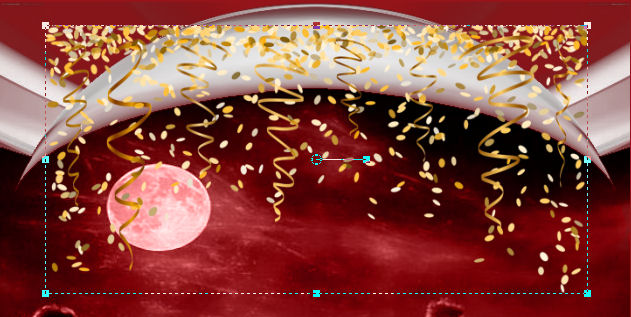
Click the RESET RECTANGLE arrow
Select the MOVER tool to disengage the DEFORMATION tool (PICK tool)
|
STEP 11
CLOSE Raster 4
ACTIVATE Raster 2
With your MAGIC WAND.... Same settings.
Select the area indicated
 , ,
|
STEP 12
OPEN & ACTIVATE Raster 4
EDIT >>> CLEAR
DESELECT
SAVE YOUR WORK
|
|
STEP 13
ACTIVATE Raster 2
SELECTIONS >>> SELECT ALL
SELECTIONS >>> FLOAT
SELECTIONS >>> DEFLOAT
ACTIVATE Raster 4
LAYERS >>> NEW RASTER LAYER
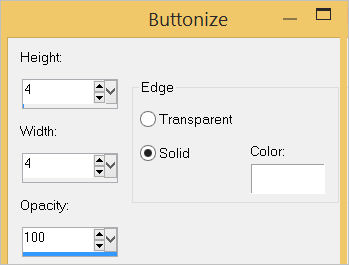
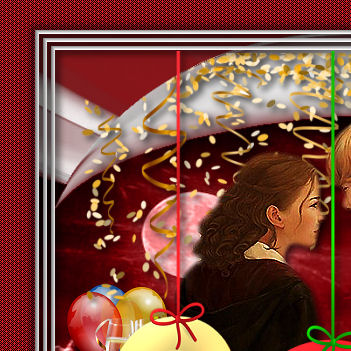
EFFECTS >>> 3D EFFECTS >>> BUTTONIZE
|
|
STEP 14
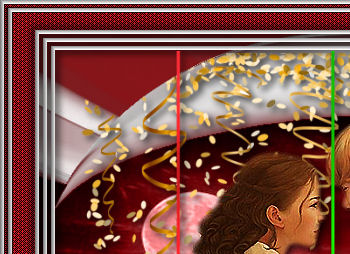
SELECTIONS >>> MODIFY >>> CONTRACT = 8
EFFECTS >>> 3D EFFECTS >>> BUTTONIZE
Same settings
SELECTIONS >>> MODIFY >>> CONTRACT = 8
EFFECTS >>> 3D EFFECTS >>> BUTTONIZE
Same settings
DESELECT |
|
STEP 15
EFFECTS >>> REFLECTION EFFECTS >>>
ROTATING MIRROR
Horizontal Offset = 0
Vertical Offset = n/a
Rotation Angle = 180
Edge Mode = Reflect
EFFECTS >>> PLUGINS >>> Mirror Rave >>> Quadrant Flip
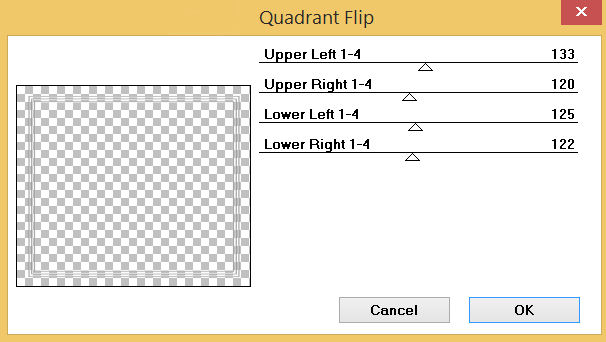
SAVE YOUR WORK |
STEP 16
ACTIVATE Raster 3
Open up the Happy_New_Year_2018 image in your PSP workspace
Right click on the Title Bar and select COPY from the options
Right click on the Title Bar of your tag image
and select PASTE AS NEW LAYER from the options.
IMAGE >>> RESIZE = 30%
Check "Lock aspect ratio."
Ensure "Resize all layers" is UNCHECKED
Resample using WEIGHTED AVERAGE
ADJUST >>> SHARPNESS >>> SHARPEN
, |
STEP 17
EFFECTS >>> IMAGE EFFECTS >>> OFFSET
Horizontal Offset = - ( minus ) 222
Vertical Offset = - ( minus ) 70
Edge Mode = Transparent |
|
STEP 18
Open up the Ice Bucket72 image in your PSP workspace
Right click on the Title Bar and select COPY from the options
Right click on the Title Bar of your tag image
and select PASTE AS NEW LAYER from the options.
IMAGE >>> RESIZE = 55%
Check "Lock aspect ratio."
Ensure "Resize all layers" is UNCHECKED
Resample using WEIGHTED AVERAGE
ADJUST >>> SHARPNESS >>> SHARPEN
,, |
STEP 19
EFFECTS >>> IMAGE EFFECTS >>> OFFSET
Horizontal Offset = 228
Vertical Offset = - ( minus ) 80
Edge Mode = Transparent
LAYERS >>> MERGE >>> MERGE DOWN
SAVE YOUR WORK
|
|
STEP 20
ACTIVATE Raster 5
Open up the couple 21 image in your PSP workspace
Right click on the Title Bar and select COPY from the options
Right click on the Title Bar of your tag image
and select PASTE AS NEW LAYER from the options.
IMAGE >>> RESIZE = 90%
Check "Lock aspect ratio."
Ensure "Resize all layers" is UNCHECKED
Resample using WEIGHTED AVERAGE
ADJUST >>> SHARPNESS >>> SHARPEN
, |
STEP 21
EFFECTS >>> IMAGE EFFECTS >>> OFFSET
Horizontal Offset = - ( minus ) 25
Vertical Offset = - ( minus ) 20
Edge Mode = Transparent |
|
STEP 22
EFFECTS >>> 3D EFFECTS >>> DROP SHADOW
Vertical & Horizontal offsets = 4
Colour = Black
Opacity = 70
Blur = 10.00
ACTIVATE Raster 5
EDIT >>> Repeat Drop Shadow
ACTIVATE Raster 4
EDIT >>> Repeat Drop Shadow
ACTIVATE Raster 6
EDIT >>> Repeat Drop Shadow
ACTIVATE Raster 2
EDIT >>> Repeat Drop Shadow
, |
STEP 23
ACTIVATE Raster 5
EFFECTS >>> 3D EFFECTS >>> DROP SHADOW
Vertical & Horizontal offsets = - (Minus) 4
Colour = Black
Opacity = 70
Blur = 10.00
SAVE YOUR WORK |
|
STEP 24
ACTIVATE the top layer
Open up the 2018_Hanging_Deco image
in your PSP workspace
Right click on the Title Bar and select COPY from the options
Right click on the Title Bar of your tag image
and select PASTE AS NEW LAYER from the options.
IMAGE >>> RESIZE = 80%
Check "Lock aspect ratio."
Ensure "Resize all layers" is UNCHECKED
Resample using WEIGHTED AVERAGE
ADJUST >>> SHARPNESS >>> SHARPEN
, |
STEP 25
EFFECTS >>> IMAGE EFFECTS >>> OFFSET
Horizontal Offset =0
Vertical Offset = 15
Edge Mode = Transparent
EFFECTS >>> PLUGINS >>> GREG'S FACTORY OUTPUT VOL2 >>> POOL SHADOW

EFFECTS >>> 3D EFFECTS >>> DROP SHADOW
Vertical & Horizontal offsets = 4
Colour = Black
Opacity = 70
Blur = 10.00

, |
STEP 26
ACTIVATE Raster 1
EFFECTS >>> PLUGINS >>> SCREENWORKS >>> PinHole
ADJUST >>> SHARPNESS >>> SHARPEN MORE
LAYERS >>> MERGE >>> MERGE VISIBLE
SAVE YOUR WORK |
|
STEP 27
LAYERS >>> NEW RASTER LAYER
SELECTIONS >>> SELECT ALL
EFFECTS >>> 3D EFFECTS >>> BUTTONIZE
Same settings
SELECTIONS >>> MODIFY >>> CONTRACT = 8
EFFECTS >>> 3D EFFECTS >>> BUTTONIZE
Same settings
DESELECT
EFFECTS >>> REFLECTION EFFECTS >>> ROTATING MIRROR
Same settings
EFFECTS >>> PLUGINS >>> Mirror Rave >>> Quadrant Flip
Same settings
, |
STEP 28
EFFECTS >>> 3D EFFECTS >>> DROP SHADOW
Vertical & Horizontal offsets = 1
Colour = Black
Opacity = 70
Blur = 0
Repeat Drop Shadow effect changing
Vertical & Horizontal Offsets to - ( minus ) 1
Click OK
LAYERS >>> MERGE >>> MERGE VISIBLE
|
|
STEP 29
LAYERS >>> NEW RASTER LAYER
SELECT your TEXT tool
With a font of your choice add your name
LAYERS >>> MERGE >>> MERGE ALL (Flatten)
Save as .jpg image
, |
|
|
| |
|