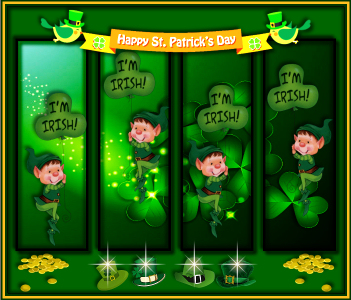
STEP 1
Open a new image 700 x 600
Transparent background
PSPX - X2: Colour Depth = 8bits/channel
PSPX3-X8: Colour Depth RGB = 8bits/channel
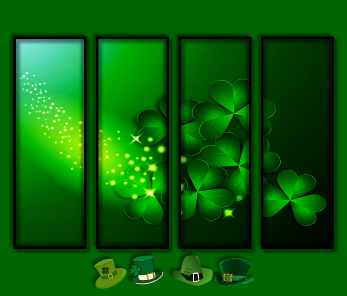
Open up the 4FrameTemplate image in your PSP workspace
Right click on the Title Bar and select COPY from the options
Right click on the Title Bar of your tag image
and select PASTE AS NEW LAYER from the options.
EFFECTS >>> IMAGE EFFECTS >>> OFFSET
Horizontal Offset = 0
Vertical Offset = 10
Edge Mode = Transparent |
STEP 2
Open up the St Patricks_Day_ Clover image
in your PSP workspace
Right click on the Title Bar and select COPY from the options
Right click on the Title Bar of your tag image
and select PASTE AS NEW LAYER from the options.
LAYERS >>> ARRANGE >>> MOVE DOWN
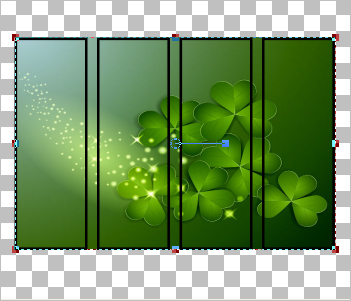
Select your RASTER DEFORM tool
Mode = SCALE
use default settings
PSPX-X8:Select your PICK tool
Pull the centre left, right, upper and lower nodes
In to the edges of the black frames as shown |
|
STEP 3
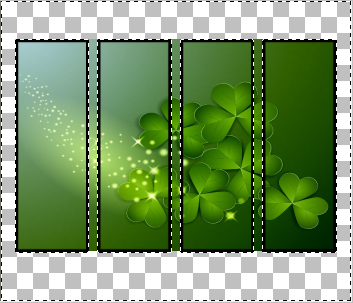
Click the RESET RECTANGLE arrow
Select your MOVER tool to disengage
the Deformation / Pick tool
ACTIVATE Raster 2
With your MAGIC WAND
Mode = Replace
Match Mode = RGB Value
Tolerance = 0
Feather = 0
Antialias = UNchecked
Sample Merged = UNCHECKED
PSP9 - X8: Check CONTIGUOUS
PSPX - X8: There is no " Sample Merged"
PSPX - X8: Use all layers = UNChecked,
Select the OUTER transparent area
|
|
STEP 4
ACTIVATE Raster 3
EDIT >>> CLEAR
DESELECT
ACTIVATE Raster 1
Flood fill with GREEN #006600
ACTIVATE Raster 3
In your LAYER PALETTE change the
BLEND MODE to HARD LIGHT
LAYERS >>> DUPLICATE
LAYERS >>> MERGE >>> MERGE DOWN |
|
STEP 5
ACTIVATE Raster 2
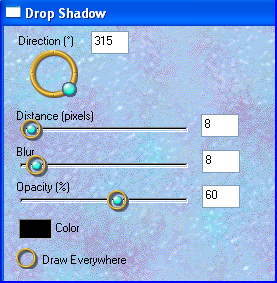
EFFECTS >>> PLUGINS >>> EYE CANDY 3 >>>
DROP SHADOW |
|
STEP 6
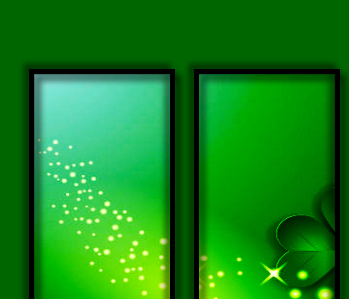
EDIT >>> Repeat Drop Shadow.. change DIRECTION to 135
|
|
STEP 7
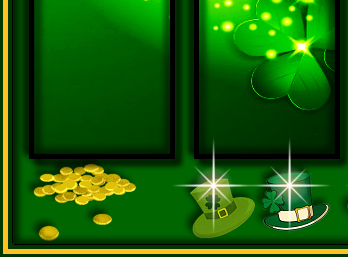
Open up the saint-patricks-hats image in your PSP workspace
Right click on the Title Bar and select COPY from the options
Right click on the Title Bar of your tag image
and select PASTE AS NEW LAYER from the options.
IMAGE >>> RESIZE = 30%
Ensure "Resize all layers" is UNCHECKED
Resample using WEIGHTED AVERAGE
ADJUST >>> SHARPNESS >>> SHARPEN
EFFECTS >>> IMAGE EFFECTS >>> OFFSET
Horizontal Offset = 0
Vertical Offset = - ( minus ) 245
Edge Mode = Transparent
EFFECTS >>> PLUGINS >>> EYE CANDY 3 >>>
DROP SHADOW
Same settings
|
|
STEP 8
Open up the goldcoins-design image in your PSP workspace
Right click on the Title Bar and select COPY from the options
Right click on the Title Bar of your tag image
and select PASTE AS NEW LAYER from the options.
EFFECTS >>> IMAGE EFFECTS >>> OFFSET
Horizontal Offset = - ( minus ) 265
Vertical Offset = - ( minus ) 245
Edge Mode = Transparent
EFFECTS >>> PLUGINS >>> EYE CANDY 3 >>>
DROP SHADOW
Same settings
LAYERS >>> DUPLICATE
IMAGE >>> MIRROR
LAYERS >>> MERGE >>> MERGE DOWN
EDIT >>> Repeat Layer Merge Down
|
|
STEP 9
LAYERS >>> ARRANGE >>> MOVE DOWN
EDIT >>> Repeat Layer Move Down
LAYERS >>> MERGE >>> MERGE DOWN
Rename this layer bgd
ACTIVATE Raster 2
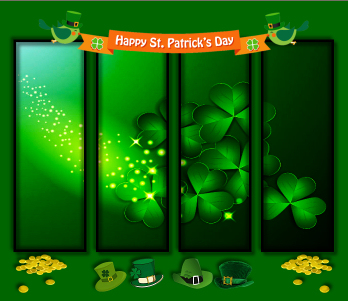
Open up the StPatrick_banner image in your PSP workspace
Right click on the Title Bar and select COPY from the options
Right click on the Title Bar of your tag image
and select PASTE AS NEW LAYER from the options.
EFFECTS >>> IMAGE EFFECTS >>> OFFSET
Horizontal Offset = 0
Vertical Offset = 235
Edge Mode = Transparent |
|
STEP 10
EFFECTS >>> PLUGINS >>> EYE CANDY 3 >>>
DROP SHADOW
Same settings
EDIT >>> Repeat Drop Shadow.. change DIRECTION to 315
Rename this layer banner 1
LAYERS >>> DUPLICATE
In your LAYER PALETTE change the
BLEND MODE to DODGE
Rename this layer banner 2 |
|
STEP 11
ACTIVATE Raster 2
LAYERS >>> MERGE >>> MERGE DOWN
EDIT >>> Repeat Layer Merge Down
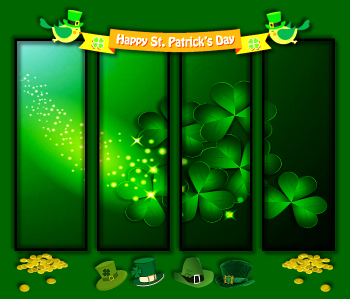
Open up the H Sparkle - White image in your PSP workspace
Right click on the Title Bar and select COPY from the options
Right click on the Title Bar of your tag image
and select PASTE AS NEW LAYER from the options.
IMAGE >>> RESIZE = 70%
Ensure "Resize all layers" is UNCHECKED
Resample using WEIGHTED AVERAGE
LAYERS >>> DUPLICATE
LAYERS >>> MERGE >>> MERGE DOWN
Reposition with your MOVER tool
Rename this layer X |
|
STEP 12
LAYERS >>> DUPLICATE
Reposition with your MOVER tool
Rename this layer XX |
|
STEP 13
LAYERS >>> DUPLICATE
Reposition with your MOVER tool
Rename this layer XXX |
|
STEP 14
LAYERS >>> DUPLICATE
Reposition with your MOVER tool
Rename this layer XXXX |
|
STEP 15
ACTIVATE the bgd layer
Open up the STP-Frame image in your PSP workspace
Right click on the Title Bar and select COPY from the options
Right click on the Title Bar of your tag image
and select PASTE AS NEW LAYER from the options.
EFFECTS >>> PLUGINS >>> EYE CANDY 3 >>>
DROP SHADOW
Same settings
EDIT >>> Repeat Drop Shadow.. change DIRECTION to 135
LAYERS >>> MERGE >>> MERGE DOWN |
|
STEP 16
ACTIVATE the XXXX layer
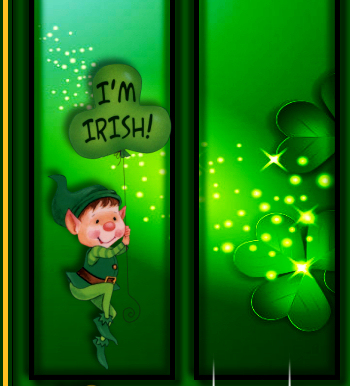
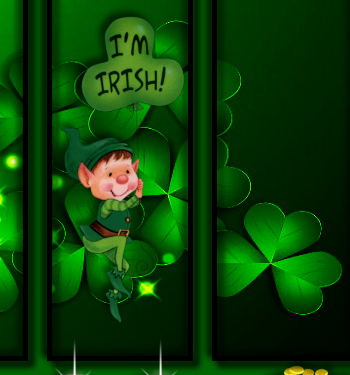
Open up the Leprechaun2 image in your PSP workspace
Activate Raster 1
Right click on the Title Bar and select COPY from the options
Right click on the Title Bar of your tag image
and select PASTE AS NEW LAYER from the options.
EFFECTS >>> PLUGINS >>> EYE CANDY 3 >>>
DROP SHADOW
Same settings
Reposition with your MOVER tool
Rename this layer lep 1
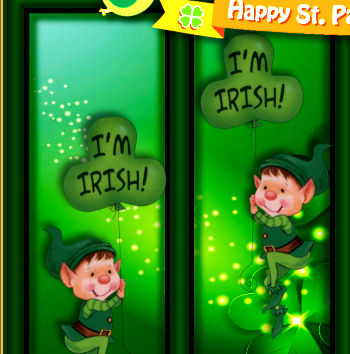
(NOTE: The positioning of the leprechauns doesn't have to be exactly as shown. Positioning is up to you. Just ensure they are within the frames indicated) |
|
STEP 17
LAYERS >>> DUPLICATE
Reposition with your MOVER tool into the 3rd frame from left
Rename this layer lep 3 |
|
STEP 18
ACTIVATE the lep 1layer
Open up the Leprechaun2 image in your PSP workspace
Activate Raster 2
Right click on the Title Bar and select COPY from the options
Right click on the Title Bar of your tag image
and select PASTE AS NEW LAYER from the options.
EFFECTS >>> PLUGINS >>> EYE CANDY 3 >>>
DROP SHADOW
Same settings
Reposition with your MOVER tool into 2nd frame from left
Rename this layer lep 2 |
|
STEP 19
LAYERS >>> DUPLICATE
Reposition with your MOVER tool into the last frame
on the right
Rename this layer lep 4
SAVE YOUR WORK
|
|
STEP 20
ACTIVATE the bgd layer
LAYERS >> NEW RASTER LAYER
Select your TEXT TOOL
with font and settings of your choice
add your name.
LAYERS >>> MERGE >>> MERGE DOWN
|
|
STEP 21
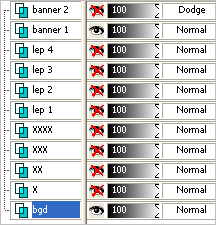
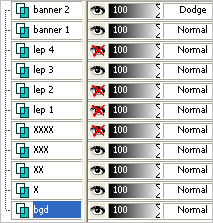
Set up LAYER PALETTE as shown
Right click on Title Bar and select
Copy merged from the options |
|
STEP 22
In ANIMATION SHOP
Right click the workspace and select
'Paste As New Animation' from the options.
Back to PSP.
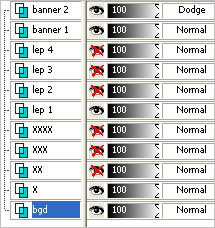
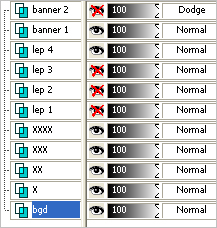
Set up LAYER PALETTE as shown
Right click on Title Bar and select
Copy merged from the options |
|
STEP 23
In ANIMATION SHOP
Select
'Paste After Current' icon on top menu.
Back to PSP.
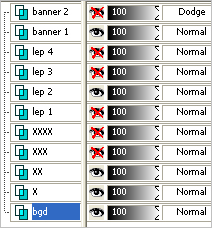
Set up LAYER PALETTE as shown
Right click on Title Bar and select
Copy merged from the options |
|
STEP 24
In ANIMATION SHOP
Select
'Paste After Current' icon on top menu.
Back to PSP.
Set up LAYER PALETTE as shown
Right click on Title Bar and select
Copy merged from the options |
|
STEP 25
In ANIMATION SHOP
Select
'Paste After Current' icon on top menu.
Back to PSP.
Set up LAYER PALETTE as shown
Right click on Title Bar and select
Copy merged from the options |
|
STEP 26
In ANIMATION SHOP
Select
'Paste After Current' icon on top menu.
Edit >> Select All
Right click on Title Bar of frames
Select 'Frame Properties' from the options
Display time = 60 |
STEP 27
View >> Animation
and while it is still running,
File >> Save As
Locate the folder in which you wish to save it.
Name your animation.
With the Gif Optimiser keep pressing NEXT
until you get to the last one... click FINISH
Close the Animation
Close the frames.
Close Animation Shop |
| |
|
RESIZING ANIMATIONS
Click on the Title Bar of the frames
Animation >> Resize animation
Select width and height in pixels
Click OK
Save your animation |
| |
|
| |
|