IMAGINATION
PSP8 to PSPX3

This tutorial was written by Jemima ~ JULY 2011
Copyright © 2011 ~ Jemima ~ All rights reserved
********************************
This was created using PSP9 but can be adapted for other versions of PSP.
You will need the
following to complete this tutorial
Materials
warmbgd.jpg
GINATUBES FEMME 1895.pspimage
raz2005_Misted_IronBlockade_Jarling.psp
JF_Pirate.pspimage
JF_Bars11.pspimage
imagination.pspimage
Save to a folder on your computer
fabric_violet-lg.gif
Separate ZIP File
Save to your PSP Patterns folder
PSP8: C:\Program Files\Jasc Software\Paint Shop Pro 8\Patterns
PSP9: C:\Program Files\Jasc Software\Paint Shop Pro 9\Patterns
PSPX: C:\Program Files\Corel\Corel Paint Shop Pro X\Patterns
PSPXI / X2: C:\Program Files\Corel\Corel Paint Shop Pro Photo X2\Corel_08
PSPX3: C:\Program Files\Corel\X3\PSPClassic\Corel_08
Plugins
** NONE**
********************************
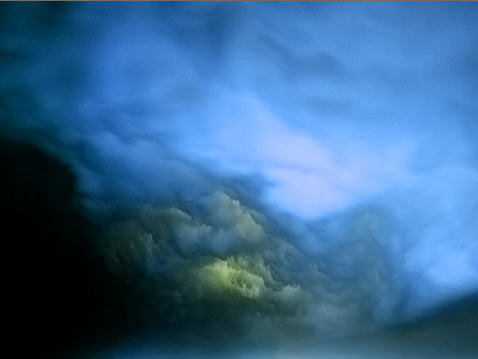
Open up the warmbgd image in your PSP workspace
WINDOW >>> DUPLICATE
Close the original Image
LAYERS >>> Promote background Layer
LAYERS >>> DUPLICATE
In your LAYER PALETTE change BLEND MODE to COLOR (L)
ADJUST >>> BLUR >>> BLUR AVERAGE

ADJUST >>> COLOUR BALANCE >>> NEGATIVE IMAGE
PSPX - X3: IMAGE >>> NEGATIVE IMAGE
LAYERS >>> DUPLICATE
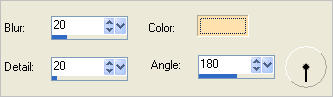
EFFECTS >>> ARTISTIC EFFECTS >>> COLORED FOIL
COLOUR = #ffe1ad
In your LAYER PALETTE change the OPACITY to 68%
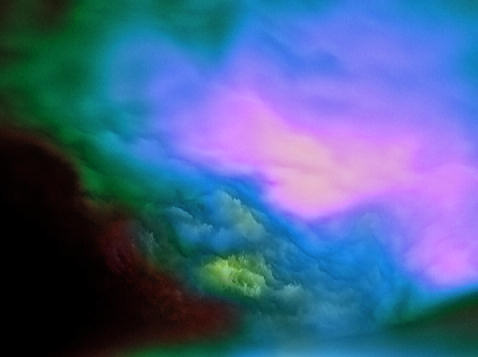
ACTIVATE RASTER 1
Close 'Copy of Raster 1'
Close '
Copy (2) of Raster 1'
Open up the GINATUBES FEMME 1895 image in your PSP workspace
Right click on the Title Bar and select COPY from the options
Right click on the Title Bar of your tag image
and select PASTE AS NEW LAYER from the options.
IMAGE >>> RESIZE = 50%
Ensure "Resize all layers" is UNCHECKED
Resample using WEIGHTED AVERAGE
In your LAYER PALETTE change the OPACITY to 40%
Reposition with your MOVER tool
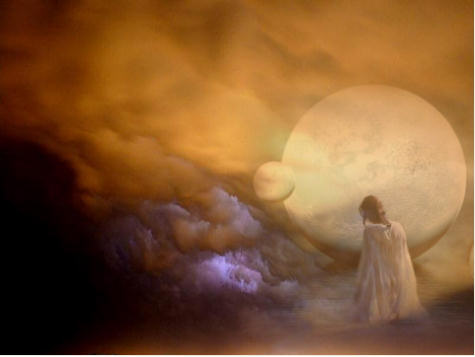
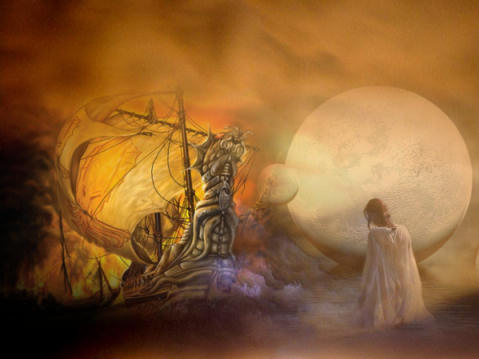
Open up the raz2005_Misted_IronBlockade_Jarling image in your PSP workspace
Right click on the Title Bar and select COPY from the options
Right click on the Title Bar of your tag image
and select PASTE AS NEW LAYER from the options.
IMAGE >>> RESIZE = 75 %
Ensure "Resize all layers" is UNCHECKED
Resample using WEIGHTED AVERAGE
Reposition with your MOVER tool
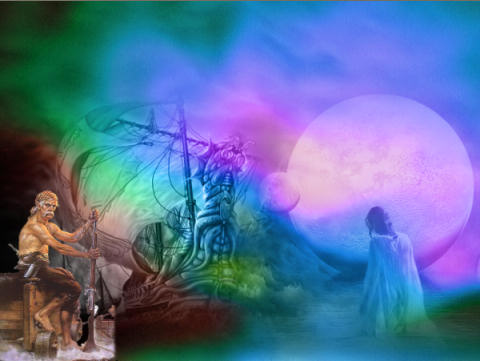
Open up the JF_Pirate image in your PSP workspace
Right click on the Title Bar and select COPY from the options
Right click on the Title Bar of your tag image
and select PASTE AS NEW LAYER from the options.
IMAGE >>> RESIZE = 50 %
Ensure "Resize all layers" is UNCHECKED
Resample using WEIGHTED AVERAGE
LAYERS >>> ARRANGE >>> BRING TO TOP
Reposition with your MOVER tool
OPEN 'Copy of Raster 1'
OPEN 'Copy (2) of Raster 1'
Open up the JF_Bars11 image in your PSP workspace
Right click on the Title Bar and select COPY from the options
Right click on the Title Bar of your tag image
and select PASTE AS NEW LAYER from the options.
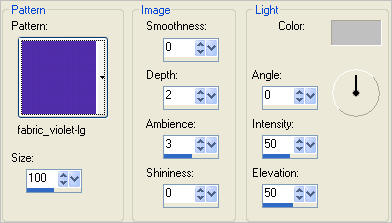
EFFECTS >>> TEXTURE EFFECTS >>> SCULPTURE
COLOUR = #c0c0c0
VIEW >>> RULERS
Reposition with your MOVER tool so the top of the upper bar is level with
the 10 pixel mark on the left ruler.
Select your DEFORMATION tool
Mode = SCALE
use default settings
PSPX-X3:Select your PICK tool
Drag the centre bottom node up so it's level with the top of the lower bar and release.

Drag the centre left and right nodes to the left and right respectively,
level with the 10 pixel and 590 pixel marks on the top ruler.

Click the RESET RECTANGLE arrow
LAYERS >>> DUPLICATE
IMAGE >>> FLIP
LAYERS >>> DUPLICATE
PSP8 - PSP9:IMAGE >>> ROTATE >>> FREE ROTATE = RIGHT 90
Ensure "All layers" is UNCHECKED
PSPX - PSPX3: IMAGE >>> FREE ROTATE = RIGHT 90
Ensure "All layers" is UNCHECKED
Reposition with your MOVER tool to the right side of your image as shown below.

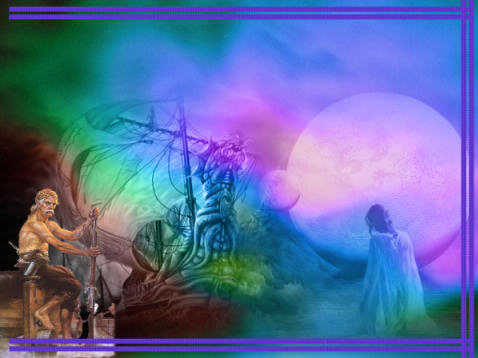
LAYERS >>> DUPLICATE
IMAGE >>> MIRROR
LAYERS >>> MERGE >>> MERGE DOWN
EDIT >>> Repeat Layers merge down
(twice)
EFFECTS >>> 3D EFFECTS >>> DROP SHADOW
Vertical & Horizontal offsets = 1
Colour = Black
Opacity = 70
Blur = 0
Repeat Drop Shadow effect changing
Vertical & Horizontal Offsets to - ( minus ) 1
Click OK
EFFECTS >>> 3D EFFECTS >>> INNER BEVEL
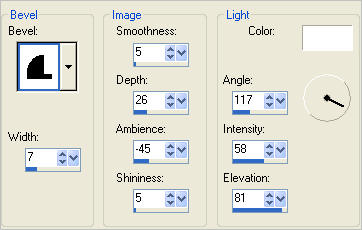
NOTE: Depending on how you did the DEFORMATION instruction
your corner design may look slightly different

Open up the imagination image in your PSP workspace
Right click on the Title Bar and select COPY from the options
Right click on the Title Bar of your tag image
and select PASTE AS NEW LAYER from the options.
IMAGE >>> RESIZE = 50 %
Ensure "Resize all layers" is UNCHECKED
Resample using WEIGHTED AVERAGE
Reposition with your MOVER tool

EFFECTS >>> TEXTURE EFFECTS >>> SCULPTURE
Same settings
EFFECTS >>> 3D EFFECTS >>> DROP SHADOW
Vertical & Horizontal offsets = 1
Colour = Black
Opacity = 70
Blur = 0
Repeat Drop Shadow effect changing
Vertical & Horizontal Offsets to - ( minus ) 1
Click OK
EFFECTS >>> ILLUMINATION EFFECTS >>> LIGHTS
Open lights 1,2,3,4 and make sure they are 'turned off"

Open light 5 and use these settings
COLOUR = #c0c0c0
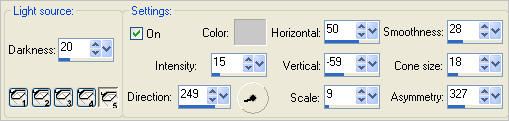

LAYERS >>> MERGE >>> MERGE ALL (Flatten)
IMAGE >>> ADD BORDERS = SYMMETRIC 2
COLOUR = #57249c
Save as .jpg image
TESTERS RESULTS
Page designed by

for
http://www.artistrypsp.com/
Copyright ©
2000-2012 Artistry In PSP / PSP Artistry
All rights reserved.
Unless specifically made available for
download,
no graphics or text may be removed from
this site for any reason
without written permission from Artistry
In PSP / PSP Artistry
|