TEXT OUTSIDE A CIRCLE
PSP8 to PSPX3
This tutorial was written by Jemima ~ APRIL 2011
Copyright © 2011 ~ Jemima ~ All rights reserved
********************************
In your MATERIALS PALETTE
Load BLACK " #000000" in your FOREground
NULL YOUR BACKGROUND
Open a new image 600 x 600
Transparent background
PSPX - X2: Colour Depth = 8bits/channel
PSPX3: Colour Depth RGB = 8bits/channel
Select your PRESET SHAPES tool
Choose the "Ellipse" shape and these settings.
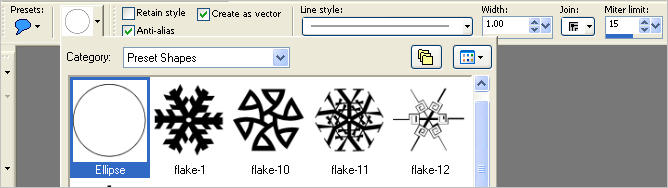
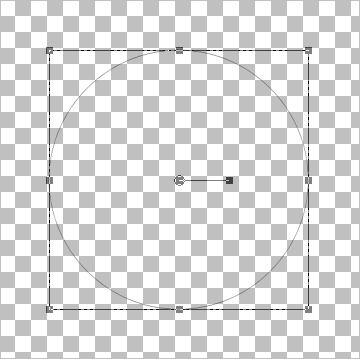
With your SHIFT key depressed draw a circle in your blank image as shown,
then from the Menu
OBJECTS >>> ALIGN >>> CENTRE IN CANVAS
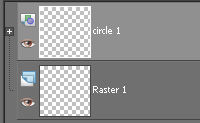
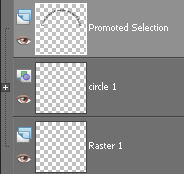
In your LAYER PALLETTE rename the vector layer "circle 1"
Select your TEXT tool
PSPX3 TIP: PSPX3 has a very different way of adding text
However if you hold down the shift key when
clicking on the A (Text Tool) the box will show up as other versions
otherwise type the text and then click on the apply changes
(green button in the tools options next to presets)
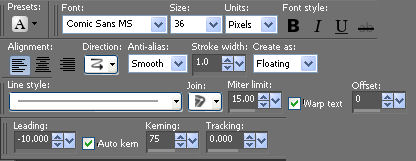
You can use your own font and settings once you get used to doing this,
I used these.
PSP8 - PSP9 ... KERNING = - (minus) 25
PSPX - PSPX3 ... KERNING = 75
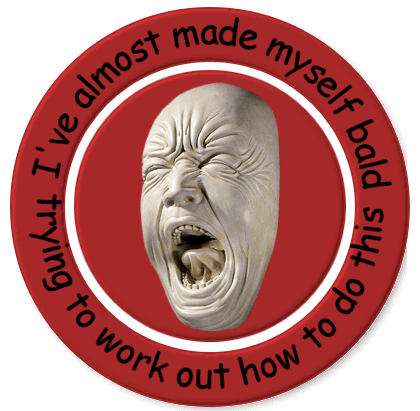
Working this tut out had me going nuts... that's the reason for the following text *S*
You can use whatever message you like BUT I had a total of 28
letters and spaces in this message.
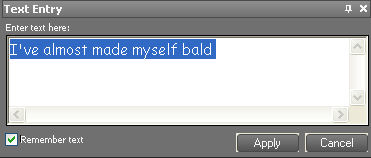
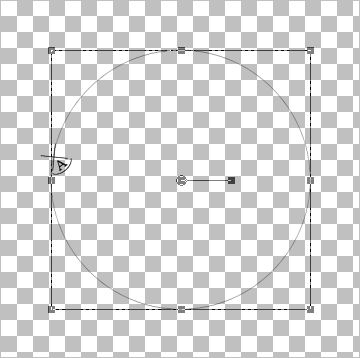
Place your cursor on the left side of the circle until you see the "A" with the half circle under it.
Then click.
NOTE: Depending on the length of your message you may have to try this a few times
until it's centred by cancelling your text entry then click again in a slightly different position.
Click APPLY
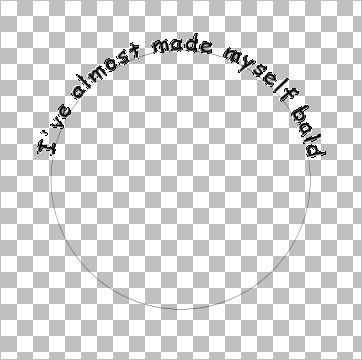
SELECTIONS >>> SELECT NONE
NOTE: If you want your message to go 'full circle' make sure it's long enough
to cover the circumference of the circle.
NOW we'll add more text to the lower part of the circle.
In your LAYER PALETTE
ACTIVATE circle 1 layer
Right click and select DUPLICATE from the options
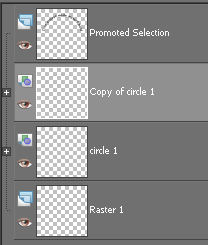
Click on the + (plus) sign next to 'Copy of circle 1' and click on the layer with the circle on it.
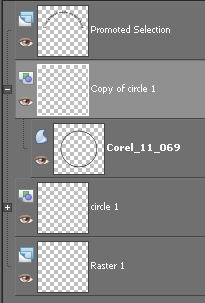
Click on the - (minus) sign to close.
Your image will look like this
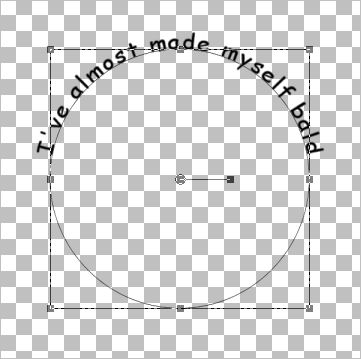
Select your PEN tool.
You will see 4 nodes placed around the circle, we will be using the bottom one.
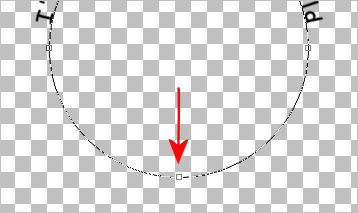
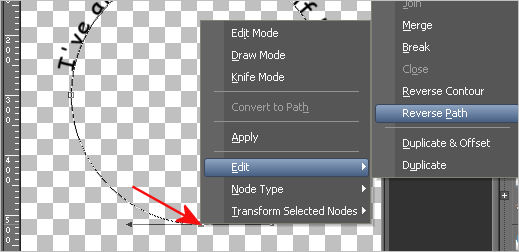
Right click on the bottom node..
EDIT >>> REVERSE PATH
This is the result
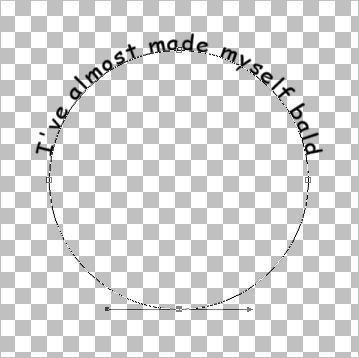
Select your TEXT tool ... same settings
Position your cursor on the left side of the circle as shown
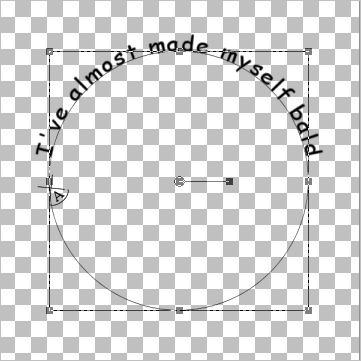
Enter your message in the Text Box
When you are satisfied with the position click APPLY

OK.. it's on the inside of the circle...
You will have to adjust the OFFSET setting until the text is outside the circle.
PSP8 - PSP9 ... OFFSET = - (minus) 25
PSPX - PSPX3 ... OFFSET = - (minus) 19
SELECTIONS >>> SELECT NONE

O.K.... now let's get rid of the circles.
In your LAYER PALETTE
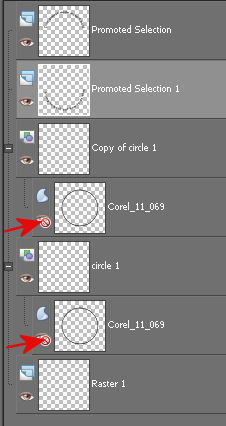
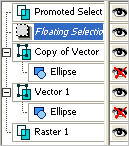
OPEN the 'Copy of circle 1' layer and close the circle layer.
OPEN the 'Circle 1' layer and close the circle layer.
 . . 
LAYERS >>> MERGE >>> MERGE VISIBLE
Save as .psp image
Page designed by

for
http://www.artistrypsp.com/
Copyright ©
2000-2011 Artistry In PSP / PSP Artistry
All rights reserved.
Unless specifically made available for
download,
no graphics or text may be removed from
this site for any reason
without written permission from Artistry
In PSP / PSP Artistry
|