XMAS TAG 2011
PSP8 to PSPX3
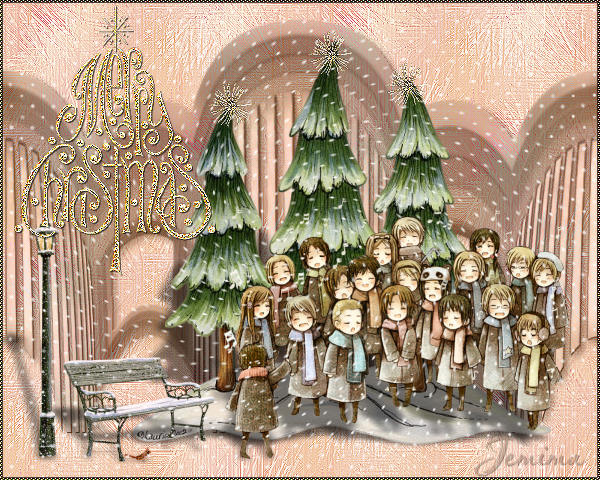
This tutorial was written by Jemima ~ December 2010
Copyright © 2010 ~ Jemima ~ All rights reserved
********************************
This was created using PSP9 but can be adapted for other versions of PSP.
You will need the
following to complete this tutorial
Materials
goldgarland2.tub
h@nne_trees.pspimage
WinterPost&Bench_KK.psp
050_(XMAS)_GOLD_CHRISTMAS_TREE_02_MM.tub
kikirou1208_Silent_night_holy_night_by_Ugly_baka_girl.pspimage
Save to a folder on your computer
JF_FurPattern.jpg
goldenbeads.bmp
xmas snow.tub
Save to your PSP Patterns folder
PSP8: C:\Program Files\Jasc Software\Paint Shop Pro 8\Patterns
PSP9: C:\Program Files\Jasc Software\Paint Shop Pro 9\Patterns
PSPX: C:\Program Files\Corel\Corel Paint Shop Pro X\Patterns
PSPXI / X2: C:\Program Files\Corel\Corel Paint Shop Pro Photo X2\Corel_08
PSPX3: C:\Program Files\Corel\X3\PSPClassic\Corel_08
cmv001.jpg
Save to your PSP Masks folder
PSP8: C:\Program Files\Jasc Software\Paint Shop Pro 8\Masks
PSP9: C:\Program Files\Jasc Software\Paint Shop Pro 9\Masks
PSPX: C:\Program Files\Corel\Corel Paint Shop Pro X\Masks
PSPXI / X2: C:\Program Files\Corel\Corel Paint Shop Pro Photo X2\Corel_07
PSPX3: C:\Program Files\Corel\X3\PSPClassic\Corel_07
Plugins
** EYE CANDY3 **
http://www.pircnet.com/downloads.html
********************************
In your MATERIALS PALETTE
Load CREAM ' #fbf8d8 ' in your foreground
Load RED ' #c72f48 ' in your background
Open a new image 600 x 480
Transparent background
PSPX - X2: Colour Depth = 8bits/channel
PSPX3: Colour Depth RGB = 8bits/channel
Flood fill with RED
In your MATERIALS PALETTE
Load the ' JF_FurPattern ' pattern in your foreground
using the settings below.
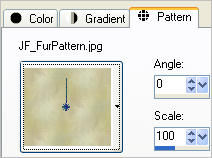
LAYERS >>> NEW RASTER LAYER
Flood fill with the pattern
In your LAYER PALETTE change the BLEND MODE to SCREEN
LAYERS >>> NEW RASTER LAYER
Flood fill with CREAM
LAYERS >>> LOAD/SAVE MASK >>> LOAD MASK FROM DISK
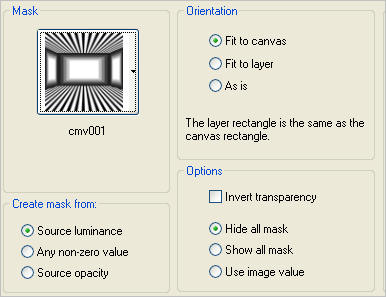
LAYERS >>> MERGE >>> MERGE GROUP
EFFECTS >>> 3D EFFECTS >>> DROP SHADOW
Vertical & Horizontal offsets = 1
Colour = Black
Opacity = 70
Blur = 0
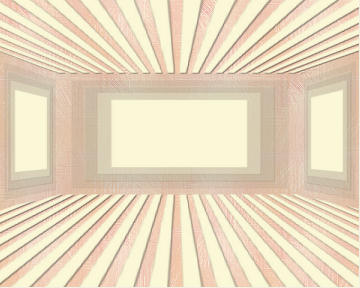
ADJUST >>> BRIGHTNESS and CONTRAST >>> CLARIFY
Strength of effect = 5
PSPX3: BRIGHTNESS and CONTRAST >>> LOCAL TONE
Mapping strength = 5
IMAGE >>> RESIZE = 80%
Ensure "Resize all layers" is UNCHECKED
Resample using WEIGHTED AVERAGE
ADJUST >>> BRIGHTNESS and CONTRAST >>> CLARIFY
Strength of effect = 5
PSPX3: BRIGHTNESS and CONTRAST >>> LOCAL TONE
Mapping strength = 5
EFFECTS >>> DISTORTION EFFECTS >>> POLAR COORDINATES
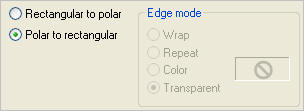
Select your MAGIC WAND ... using these settings and...
while depressing your SHIFT KEY...
Select the areas shown below

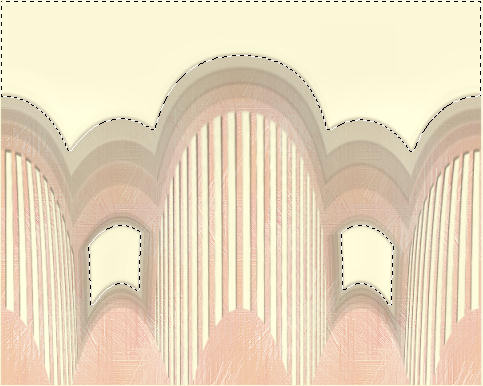
EDIT >>> CLEAR
DESELECT
In your LAYER PALETTE change the BLEND MODE to LUMINANCE (L)
ADJUST >>> BRIGHTNESS and CONTRAST >>> CLARIFY
Strength of effect = 5
PSPX3: BRIGHTNESS and CONTRAST >>> LOCAL TONE
Mapping strength = 5
EDIT >>> Repeat Clarify (or LOCAL TONE)
Reposition with your MOVER tool to the top of your tag
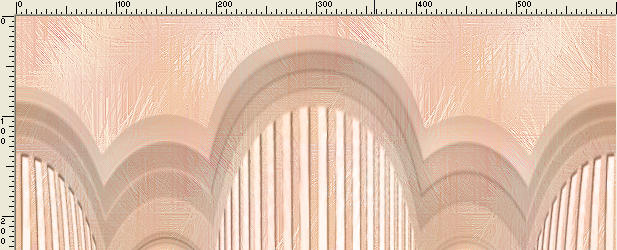
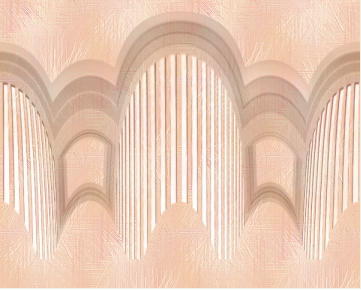
EFFECTS >>> 3D EFFECTS >>> INNER BEVEL
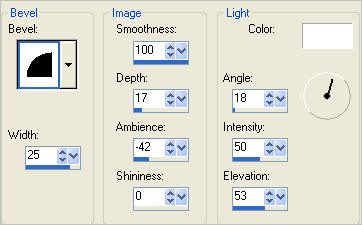
EFFECTS >>> 3D EFFECTS >>> DROP SHADOW
Vertical & Horizontal offsets = 1
Colour = Black
Opacity = 70
Blur = 0
EFFECTS >>> PLUGINS >>> EYE CANDY 3 >>> DROP SHADOW
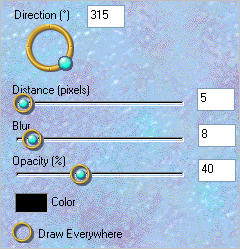
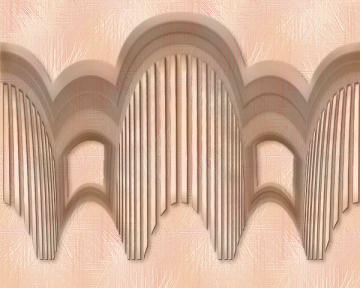
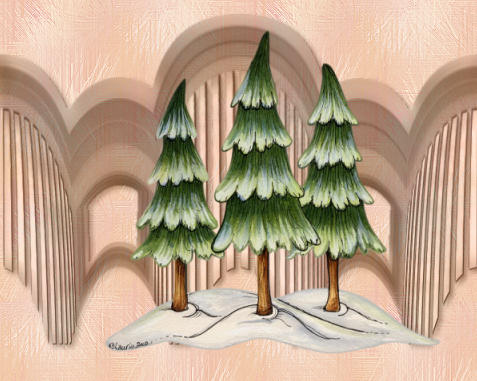
Open up the h@nne_trees image in your PSP workspace
Right click on the Title Bar and select COPY from the options
Right click on the Title Bar of your tag image
and select PASTE AS NEW LAYER from the options.
IMAGE >>> RESIZE = 75%
Ensure "Resize all layers" is UNCHECKED
Resample using WEIGHTED AVERAGE
Reposition to the RIGHT with your MOVER tool
ADJUST >>> SHARPNESS >>> SHARPEN
Open up the kikirou1208_Silent_night_holy_night_by_Ugly_baka_girl image in your PSP workspace
Right click on the Title Bar and select COPY from the options
Right click on the Title Bar of your tag image
and select PASTE AS NEW LAYER from the options.
IMAGE >>> RESIZE = 50%
Ensure "Resize all layers" is UNCHECKED
Resample using WEIGHTED AVERAGE
Reposition DOWN and to the RIGHT with your MOVER tool
ADJUST >>> SHARPNESS >>> SHARPEN
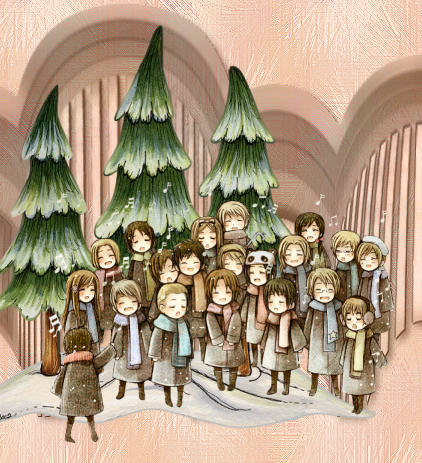
Open up the WinterPost&Bench_KK image in your PSP workspace
Right click on the Title Bar and select COPY from the options
Right click on the Title Bar of your tag image
and select PASTE AS NEW LAYER from the options.
IMAGE >>> RESIZE = 40%
Ensure "Resize all layers" is UNCHECKED
Resample using WEIGHTED AVERAGE
Reposition to the LEFT with your MOVER tool
ADJUST >>> SHARPNESS >>> SHARPEN
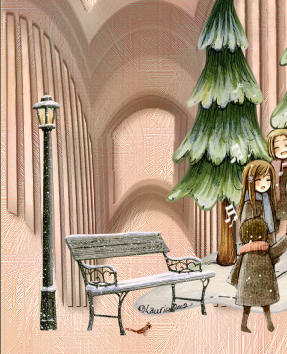
EFFECTS >>> PLUGINS >>> EYE CANDY 3 >>> PERSPECTIVE SHADOW
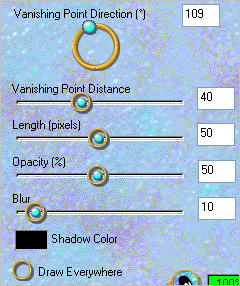
ACTIVATE RASTER 4
EDIT >>> Repeat Perspective Shadow
ACTIVATE RASTER 3
EDIT >>> Repeat Perspective Shadow
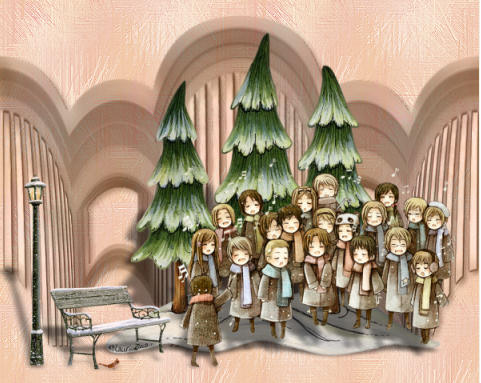
ACTIVATE RASTER 2
ADJUST >>> SHARPNESS >>> SHARPEN MORE
ACTIVATE RASTER 5
Open up the 050_(XMAS)_GOLD_CHRISTMAS_TREE_02_MM image in your PSP workspace
Right click on the Title Bar and select COPY from the options
Right click on the Title Bar of your tag image
and select PASTE AS NEW LAYER from the options.
IMAGE >>> RESIZE = 75%
Ensure "Resize all layers" is UNCHECKED
Resample using WEIGHTED AVERAGE
EFFECTS >>> EDGE EFFECTS >>> ENHANCE
EFFECTS >>> 3D EFFECTS >>> DROP SHADOW
Vertical & Horizontal offsets = 1
Colour = Black
Opacity = 70
Blur = 0
Reposition to the TOP LEFT with your MOVER tool

LAYERS >>> NEW RASTER LAYER
Open up the goldgarland2 image in your PSP workspace
Right click on the Title Bar and select COPY from the options
Right click on the Title Bar of your tag image
and select PASTE AS NEW SELECTION from the options.
Place on top of the middle tree
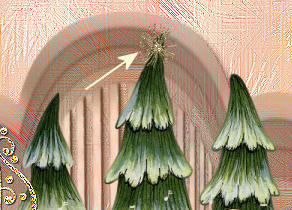
Right click on the Title Bar of your tag image
and select PASTE AS NEW SELECTION from the options.
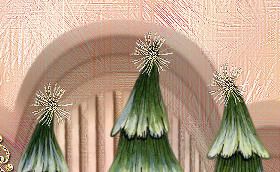
Place on top of the LEFT tree
Right click on the Title Bar of your tag image
and select PASTE AS NEW SELECTION from the options.
Place on top of the RIGHT tree
DESELECT
EFFECTS >>> EDGE EFFECTS >>> ENHANCE
In your MATERIALS PALETTE load
xmas snow pattern in the foreground
using these settings
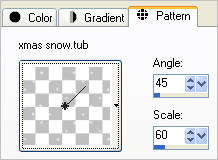
ACTIVATE RASTER 5
LAYERS >>> NEW RASTER LAYER
Flood fill with the snow pattern
EFFECTS >>> DISTORTION EFFECTS >>> TWIRL

LAYERS >>> MERGE >>> MERGE VISIBLE
In your MATERIALS PALETTE load
goldenbeads pattern in the foreground using these settings
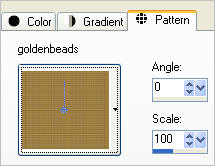
LAYERS >>> NEW RASTER LAYER
Flood fill with the goldenbeads pattern
EFFECTS >>> EDGE EFFECTS >>> ENHANCE
SELECTIONS >>> SELECT ALL
SELECTIONS >>> MODIFY >>> CONTRACT = 2
EDIT >>> CLEAR
DESELECT
EFFECTS >>> 3D EFFECTS >>> DROP SHADOW
Vertical & Horizontal offsets = 1
Colour = Black
Opacity = 70
Blur = 0
Repeat Drop Shadow effect changing
Vertical & Horizontal Offsets to - ( minus ) 1
Click OK

LAYERS >>> MERGE >>> MERGE ALL (Flatten)
Save as .jpg image
.
TESTERS RESULTS
Page designed by

for
http://www.artistrypsp.com/
Copyright ©
2000-2011 Artistry In PSP / PSP Artistry
All rights reserved.
Unless specifically made available for
download,
no graphics or text may be removed from
this site for any reason
without written permission from Artistry
In PSP / PSP Artistry
|