FOURTH OF JULY 2009
PAGE 2
This tutorial was
created by Jemima using PSP9 ~ May 2009
BUT should be creatable using all versions of PSP
Copyright © 2009 ~ Jemima
~ All rights reserved
******************************************************************
OPEN & ACTIVATE RASTER 1
EDIT >>> CLEAR
ACTIVATE the MERGED layer
With your MAGIC WAND
Mode = Replace
Match Mode = RGB Value
Tolerance = 0
Feather = 0
Antialias = UNchecked
Sample Merged = UNCHECKED
PSP9/X: Check CONTIGUOUS
PSPX: There is no " Sample Merged"
PSPX: Use all layers = UNChecked
and while depressing your SHIFT KEY...
Select the transparent areas shown below.
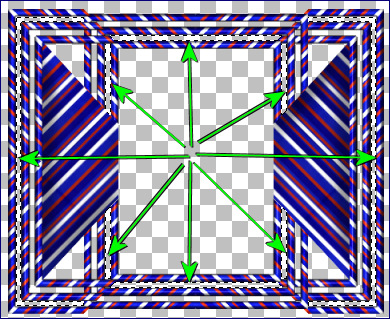
SELECTIONS >>> MODIFY >>> EXPAND = 3
ACTIVATE RASTER 1
Flood fill the selected areas with BLUE #060079
DESELECT
ACTIVATE the MERGED layer
With your MAGIC WAND ... same settings
and while depressing your SHIFT KEY...
Select the transparent areas shown below.
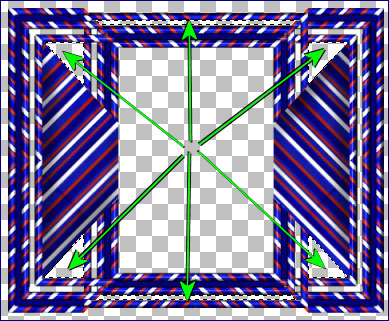
SELECTIONS >>> MODIFY >>> EXPAND = 3
ACTIVATE RASTER 1
Flood fill the selected areas with RED #ca323a
DESELECT
ACTIVATE the MERGED layer
With your MAGIC WAND ... same settings
and while depressing your SHIFT KEY...
Select the transparent areas shown below.
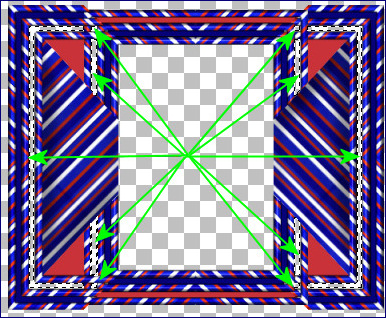
SELECTIONS >>> MODIFY >>> EXPAND = 3
ACTIVATE RASTER 1
Flood fill the selected areas with WHITE
DESELECT
EFFECTS >>> 3D EFFECTS >>> INNER BEVEL
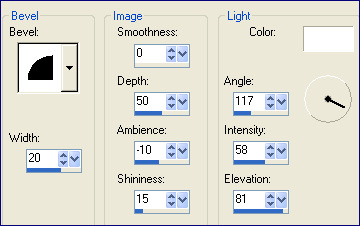

LAYERS >>> MERGE >>> MERGE VISIBLE
With your MAGIC WAND
Same settings.
Select the OUTER transparent area
LAYERS >>> NEW RASTER LAYER
LAYERS >>> ARRANGE >>> MOVE DOWN
SELECTIONS >>> MODIFY >>> EXPAND = 3
In your MATERIALS PALETTE (PATTERN) change the ANGLE to 90
and the SCALE to 50

Flood fill with the pattern.
DESELECT
SELECTIONS >>> SELECT ALL
SELECTIONS >>> MODIFY >>> CONTRACT = 12
SELECTIONS >>> INVERT
EDIT >>> CLEAR
DESELECT

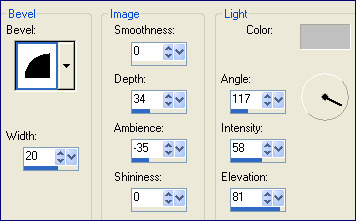
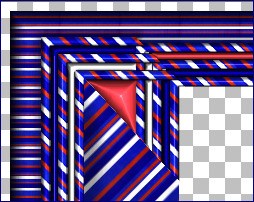
EFFECTS >>> 3D EFFECTS >>> INNER BEVEL
COLOUR = #c0c0c0
LAYERS >>> NEW RASTER LAYER
SELECTIONS >>> SELECT ALL
SELECTIONS >>> MODIFY >>> CONTRACT = 15
SELECTIONS >>> INVERT
Flood fill with RED #ca323a
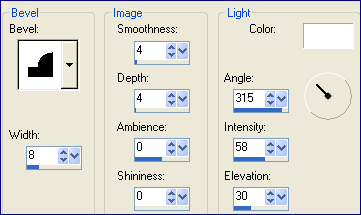
EFFECTS >>> 3D EFFECTS >>> INNER BEVEL
DESELECT
LAYERS >>> MERGE >>> MERGE VISIBLE
Save as .psp image
LAYERS >>> NEW RASTER LAYER
LAYERS >>> ARRANGE >>> MOVE DOWN
Flood fill with WHITE
Open up the Stars And StripesBLH image in your PSP workspace
Right click on the Title Bar and select COPY from the options
Right click on the Title Bar of your frame image
and select PASTE AS NEW LAYER from the options.
LAYERS >>> ARRANGE >>> BRING TO TOP
IMAGE >>> RESIZE = 50%
Ensure "Resize all layers" is UNCHECKED
Resample using WEIGHTED AVERAGE
Reposition with your MOVER tool

EFFECTS >>> PLUGINS >>> EYE CANDY 3 >>> PERSPECTIVE SHADOW

ACTIVATE the MERGED layer
With your MAGIC WAND
Same settings..
Select the CENTRE area of the frame
SELECTIONS >>> MODIFY >>> EXPAND = 3
SELECTIONS >>> INVERT
EFFECTS >>> PLUGINS >>> EYE CANDY 3 >>> DROP SHADOW

DESELECT
LAYERS >>> MERGE >>> MERGE ALL (Flatten)
Save as .jpg image
Testers Results
Page designed by

for

http://www.artistrypsp.com/
Copyright ©
2000-2009 Artistry In PSP / PSP Artistry
All rights reserved.
Unless specifically made available for
download,
no graphics or text may be removed from
this site for any reason
without written permission from Artistry
In PSP / PSP Artistry
|