TAG BACK 18
PSP8/9/X
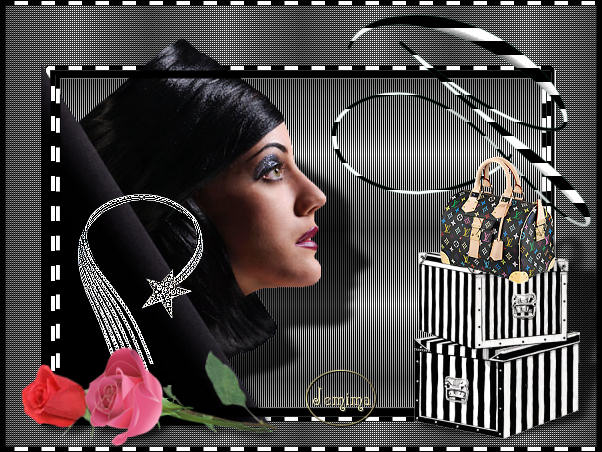
This tutorial was
written by Jemima ~ January 2007
Copyright © 2007 ~ Jemima
~ All rights reserved
********************************
This was created using PSP9 but can be adapted for other versions of PSP.
You will need the
following to complete this tutorial
Materials
LEFT CLICK >>> SAVE
JF_SH27.psp
amanda_GothicMoon.psp
jcw_zebra_boxes.psp
LVMultiColorPurse1.pspimage
Tube_filly _necklace Chanel.pspimage
dblrosebuds.psp
Save to a folder on your computer
DD3.jpg
Graphic 04.pspimage
Save to your PSP Patterns folder
Plugins
** EYE CANDY3 **
http://www.chezkiki.com/les_filtres.htm
OR
http://www.pircnet.com/downloads.html
********************************
Open your images in PSP and minimize
In your MATERIALS PALETTE
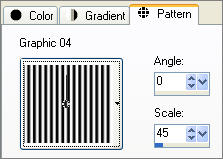
Load the ' Graphic 04 ' pattern in your foreground
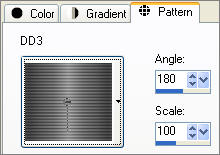
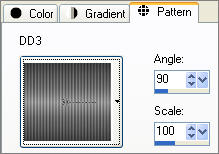
Load the ' DD3 ' pattern in your background
using the settings below.
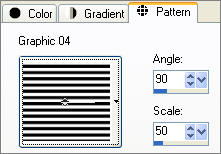 . . 
Open a new image 600 x 450
Transparent background
PSPX: Colour Depth = 8bits/channel
LAYERS >>> NEW RASTER LAYER
Choose your SELECTION TOOL then click on the CUSTOM SELECTION
symbol
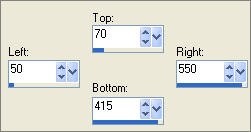
Flood fill with the ' Graphic 04 ' foreground pattern
SELECTIONS >>> MODIFY >>> CONTRACT = 5
EDIT >>> CLEAR
DESELECT
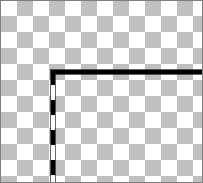
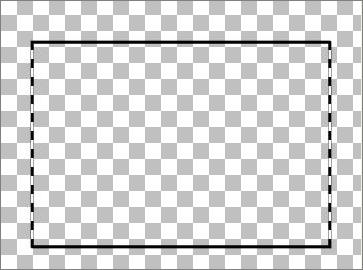
EFFECTS >>> 3D EFFECTS >>> DROP SHADOW
Vertical & Horizontal offsets = 1
Colour = Black
Opacity = 60
Blur = 0
Repeat Drop Shadow effect changing
Vertical & Horizontal Offsets to - ( minus ) 1
Click OK
 . . 
LAYERS >>> DUPLICATE
IMAGE >>> RESIZE = 98%
Ensure "Resize all layers" is UNCHECKED
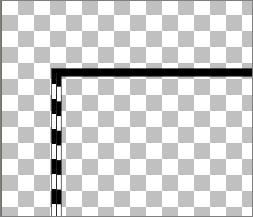
CLOSE RASTER 1
LAYERS >>> MERGE >>> MERGE VISIBLE
With your MAGIC WAND
Mode = Replace
Match Mode = RGB Value
Tolerance = 0
Feather = 0
Antialias = UNchecked
Sample Merged = UNCHECKED
PSP9/X: Check CONTIGUOUS
PSPX: There is no " Sample Merged"
PSPX: Use all layers = UNChecked
Select the OUTER transparent area
LAYERS >>> NEW RASTER LAYER
LAYERS >>> ARRANGE >>> MOVE DOWN
Flood fill with the ' DD3 ' background pattern
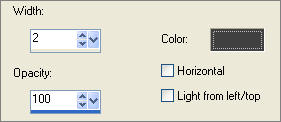
EFFECTS >>> TEXTURE EFFECTS >>> BLINDS
COLOUR = GREY "
#404040 "
DESELECT
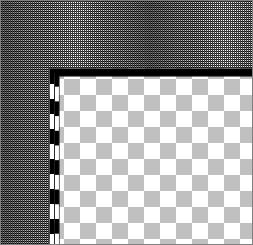
ACTIVATE THE MERGED LAYER
Change the setting on your background pattern
With your MAGIC WAND
Same settings..
Select the CENTRE transparent area
OPEN AND ACTIVATE RASTER 1
Flood fill with the ' DD3 ' background pattern
DESELECT
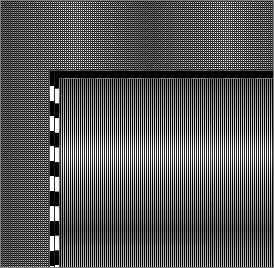
ACTIVATE RASTER 2
Open up the amanda_GothicMoon.psp image in your PSP workspace
Right click on the Title Bar and select COPY from the options
Right click on the Title Bar of your tag image
and select PASTE AS NEW LAYER from the options.
Reposition with your MOVER tool
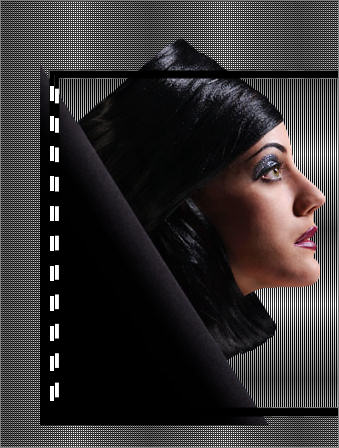
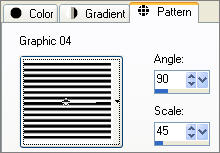
Change the settings in your foreground pattern
ACTIVATE THE MERGED LAYER
With your MAGIC WAND
Same settings..
Select the OUTER border area
LAYERS >>> NEW RASTER LAYER
Flood fill with the foreground pattern
SELECTIONS >>> INVERT
SELECTIONS >>> MODIFY >>> EXPAND = 4
SELECTIONS >>> INVERT
EDIT >>> CLEAR
DESELECT
EFFECTS >>> 3D EFFECTS >>> DROP SHADOW
Vertical & Horizontal offsets = 1
Colour = Black
Opacity = 60
Blur = 0
Repeat Drop Shadow effect changing
Vertical & Horizontal Offsets to - ( minus ) 1
Click OK
LAYERS >>> ARRANGE >>> MOVE DOWN (Twice)
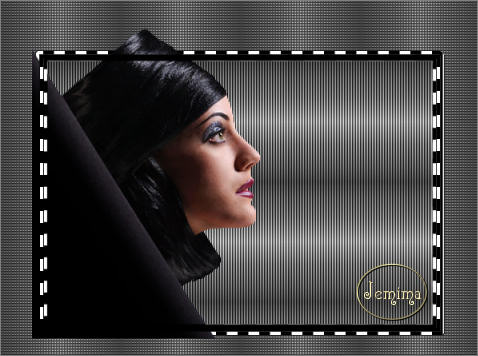
ACTIVATE THE MERGED LAYER
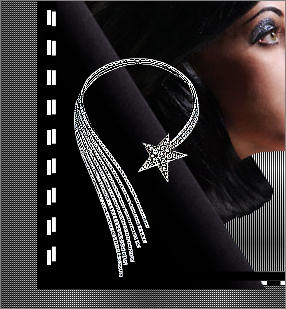
Open up the Tube_filly _necklace Chanel.pspimage image in your PSP workspace
Right click on the Title Bar and select COPY from the options
Right click on the Title Bar of your tag image
and select PASTE AS NEW LAYER from the options.
IMAGE >>> RESIZE = 50%
Ensure "Resize all layers" is UNCHECKED
EFFECTS >>> EDGE EFFECTS >>> ENHANCE MORE
Reposition with your MOVER tool
Open up the jcw_zebra_boxes.psp image in your PSP workspace
Right click on the Title Bar and select COPY from the options
Right click in your PSP WORKSPACE
and select PASTE AS NEW IMAGE from the options.
LAYERS >>> NEW RASTER LAYER
LAYERS >>> ARRANGE >>> MOVE DOWN
Flood fill with WHITE
LAYERS >>> MERGE >>> MERGE VISIBLE
With your MAGIC WAND
Same settings.. Select the OUTER WHITE area
EDIT >>> CLEAR
DESELECT
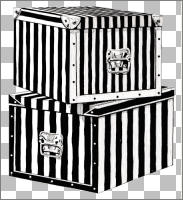
Right click on the Title Bar and select COPY from the options
Right click on the Title Bar of your tag image
and select PASTE AS NEW LAYER from the options.
IMAGE >>> RESIZE = 40%
Ensure "Resize all layers" is UNCHECKED
Reposition with your MOVER tool to the bottom right corner
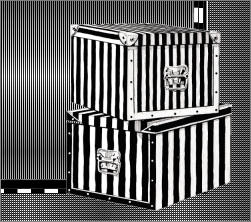
Open up the LVMultiColorPurse1.pspimage image in your PSP workspace
Right click on the Title Bar and select COPY from the options
Right click on the Title Bar of your tag image
and select PASTE AS NEW LAYER from the options.
IMAGE >>> RESIZE = 50%
Ensure "Resize all layers" is UNCHECKED
ADJUST >>> SHARPNESS >>> SHARPEN
Reposition with your MOVER tool
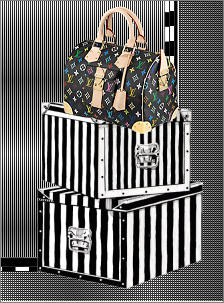
CLOSE ALL layers EXCEPT Raster 6 & 7
LAYERS >>> MERGE >>> MERGE VISIBLE
OPEN ALL LAYERS
With the top MERGED layer active
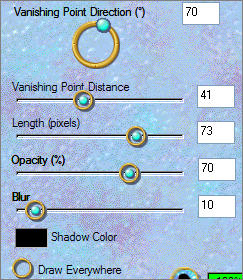
EFFECTS >>> PLUGINS >>> EYE CANDY 3 >>> PERSPECTIVE SHADOW
 . .
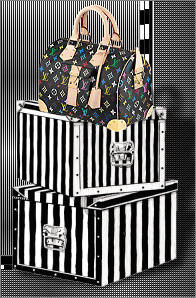
ACTIVATE RASTER 3
Repeat the EYE CANDY 3 >>> PERSPECTIVE SHADOW
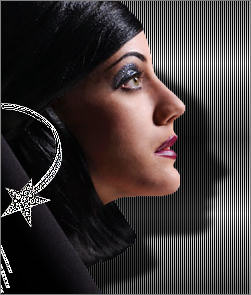
ACTIVATE THE TOP MERGED LAYER
Open up the dblrosebuds.psp image in your PSP workspace
Right click on the Title Bar and select COPY from the options
Right click on the Title Bar of your tag image
and select PASTE AS NEW LAYER from the options.
Reposition with your MOVER tool to the bottom left corner
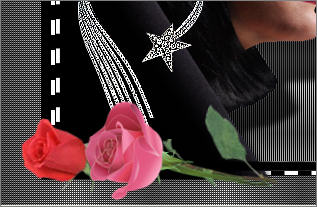
Repeat the EYE CANDY 3 >>> PERSPECTIVE SHADOW
Change the settings in your foreground pattern
Open up the JF_SH27.psp image in your PSP workspace
Right click on the Title Bar and select COPY from the options
Right click on the Title Bar of your tag image
and select PASTE AS NEW LAYER from the options.
IMAGE >>> MIRROR
IMAGE >>> RESIZE = 75%
Ensure "Resize all layers" is UNCHECKED
Choose your SELECTION TOOL
Selection Type = Rectangle
Mode = Replace
Feather = 0
Antialias = UNChecked
Draw a rectangle around the shape

Click inside the marching ants to select the shape
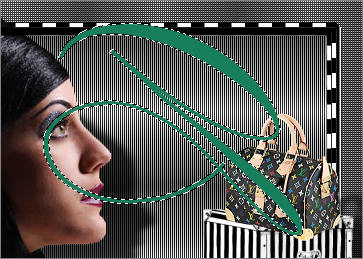
Flood fill with the foreground pattern
EFFECTS >>> 3D EFFECTS >>> INNER BEVEL
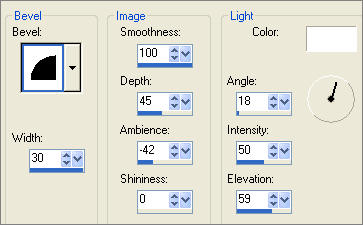
DESELECT
Reposition with your MOVER tool
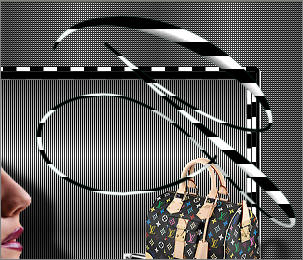
LAYERS >>> ARRANGE >>> MOVE DOWN (Twice)
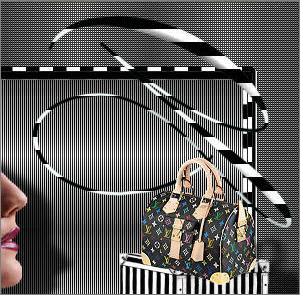
Change the settings in your foreground pattern
ACTIVATE THE TOP LAYER
LAYERS >>> NEW RASTER LAYER
SELECTIONS >>> SELECT ALL
SELECTIONS >>> MODIFY >>> CONTRACT = 4
SELECTIONS >>> INVERT
Flood fill with the foreground pattern
EFFECTS >>> 3D EFFECTS >>> DROP SHADOW
Vertical & Horizontal offsets = 1
Colour = Black
Opacity = 60
Blur = 0
Repeat Drop Shadow effect changing
Vertical & Horizontal Offsets to - ( minus ) 1
Click OK
DESELECT
Save as .psp image
(Incase you want to change some of the layers by using different tubes)
WINDOW >>> DUPLICATE
LAYERS >>> MERGE >>> MERGE ALL (Flatten)
Save as .jpg image
TESTERS RESULTS
Page designed by

for

http://www.artistrypsp.com/
Copyright ©
2000-2007 Artistry In PSP / PSP Artistry
All rights reserved.
Unless specifically made available for
download,
no graphics or text may be removed from
this site for any reason
without written permission from Artistry
In PSP / PSP Artistry
TUTORIAL
INDEX
|